

Can Moodle track file downloads? It is one of the most common questions administrators face, because confirming that learners actually received a document underpins compliance, academic integrity and course design alike.
The question is rarely idle curiosity. It surfaces when somebody else asks for evidence. A compliance officer needs proof that every employee received the updated safety policy. A program lead wants to know which students skipped the required reading. An auditor wants a record naming who accessed a document, and when. The same story repeats on the Moodle forums. Administrators build a course first, then get told the organization needs to track downloads of the documents inside it. In one such thread, the reply reframes the whole problem: how you place a file in the course decides whether Moodle logs anything at all.
Moodle does track file downloads, but only up to a point. This article covers what it records natively, where the limits sit, and how to build a record that holds up when somebody asks for proof.
I recently migrated my site to Mindfield from another host, and the experience couldn’t have been better. Mindfield kept working until they were certain that my site was operating as well as it was before, and they even helped clean up a few issues to improve my site’s performance – issues my prior host never mentioned. I also found Mindfield’s communication to be excellent. Before the migration, they prepared me for what to expect, and during the migration they kept me well-informed.
Jim Benedek
review Source: Google Reviews
Outline
- Can Moodle Track File Downloads? A Direct Answer
- How Moodle Natively Logs File Access
- The Limitations of Moodle’s Download Tracking
- Turning File Access into Enforceable Engagement Proxies
- When Native Logs Are Insufficient: Advanced Engagement Tracking
- Powering Robust Tracking with Mindfield Moodle Experts
- Frequently Asked Questions (FAQs)
Can Moodle Track File Downloads? A Direct Answer

The direct answer is: Moodle can partially track file downloads. The platform logs when a user accesses or views a file resource within the Moodle environment. This typically results in the file being downloaded to their device or opened in a browser tab.
However, Moodle cannot track what happens to that file once it leaves the server’s control. This distinction is crucial for understanding the scope of Moodle’s capabilities.
First, What Is a “File Tab”?
People searching for this answer often ask about “file tabs,” which is worth unpacking, because it describes a display choice rather than a Moodle feature. Add a File resource to a course and its Appearance > Display setting controls how the document reaches the learner:
- Automatic: Moodle picks the most suitable option for the file type.
- Embed: the file appears inside the Moodle page, with the usual navigation around it.
- Open: the file fills the browser tab on its own, without the Moodle page around it.
- In pop-up: the same as Open, but in a new browser window.
- Force download: the browser saves the file instead of displaying it.
Two further options, In frame and New window, are switched off by default and only appear once an administrator enables them site-wide.
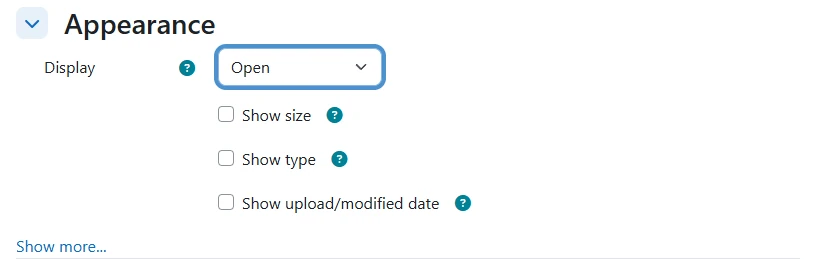
A “file tab,” then, is simply a PDF or document that opened in its own browser tab because the resource was set to Open, In pop-up, or New window. That setting changes how the material feels to a learner, but it changes nothing about what gets recorded. Whichever display option you choose, Moodle logs the same single fact: the learner clicked the File resource. Everything after that happens inside the browser, where Moodle has no visibility.
Understanding the Distinction: Access vs. Engagement
Moodle’s logging is server-side. A click on a File resource confirms the file was delivered, nothing more. Engagement means what happens next: reading the document, watching the video, working through it. For a standalone file, Moodle sees none of that.
How Moodle Natively Logs File Access
Moodle’s logging system records user interactions, including file access. Those logs are the foundation for everything else here.
Standard Log Store Records
When a learner opens a File resource, Moodle writes an event to its standard log store. Each record is a snapshot of who accessed what, and when:
- User ID: The unique identifier of the user who performed the action.
- Timestamp: The exact date and time the action occurred.
- IP Address: The IP address from which the user accessed Moodle.
- Course ID: The specific course where the file is located.
- Activity ID: The ID of the resource module (e.g., a File activity).
- Event Name: for a File resource this is
\mod_resource\event\course_module_viewed, shown in the log report as “Course module viewed.” Moodle raises no separate event for the transfer itself. This one entry is the record of access. - Origin: The page from which the action was initiated.
Accessing Log Data as an Administrator
Moodle ships four reports over this data. Knowing which one to reach for matters more than knowing where it sits in the menus.
- The site logs are the system of record. Filter by course, participant, date, activity and action, and you can answer “who opened this document, and when” for any resource on the site. This is what an audit request should be answered from.
- Live logs show activity as it happens. Useful when you are diagnosing something in real time, not for evidence.
- A user activity report inverts the question: everything one person did, rather than everyone who touched one resource. Reach for it when the concern is an individual.
- The course participation report is the fastest way to see who has not engaged. It is coarser than the site logs, but it is the one that surfaces the learners who need an intervention.
Filtering the site logs by course and the File activity module shows every time a document was opened. That is how Moodle tracks file downloads in practice: one row per click.
Where You Put the File Decides Whether It Is Logged
This is the detail that quietly undoes most tracking projects. Moodle logs activity against activities and resources that sit on the course page. A document reached only through a link inside a Page, a Label or the course summary is not one of those. Opening it produces no course log entry at all.
- Tracked: a document added through the activity chooser as a File resource in a course section. Clicking it writes a log entry naming the user, the resource, and the time.
- Partly tracked: a Folder resource records that the folder was viewed, but not which document inside it a learner opened. A URL resource records the click, not what happened at the destination.
- Not tracked: a PDF linked from inside a Page activity, a Label, a forum post, or the course summary. The learner gets the file and the course logs stay silent.
Courses are often built the second way because it looks tidier: one Page listing ten documents with descriptions, rather than ten separate items filling the section. The reporting requirement then arrives afterwards and the neat layout has to be rebuilt as individual File resources. If tracking matters, decide that before the course is built rather than after.
The Limitations of Moodle’s Download Tracking

What Moodle cannot track matters just as much. The boundary sits between the web server and the learner’s own device, and misreading it produces overstated engagement data.
Beyond the Click: What Moodle Cannot See
Once the file reaches the browser, Moodle’s visibility ends. Three things stay invisible:
- Whether it was read: Moodle confirms the transfer, not what the learner did with the document afterwards.
- Time spent offline: no native log captures how long someone reviewed a document once it left the site, though compliance programs often ask for exactly that.
- Re-sharing: Moodle cannot tell whether a learner forwarded the file onwards, which matters for protecting intellectual property.
In short, “downloaded” is not “read”, and log data should be interpreted that way.
Why These Limitations Exist
None of this is a Moodle shortcoming. Browser security models deliberately stop web applications from watching local file activity, and a downloaded file exists independently of the server that sent it. That separation protects privacy. Moodle serves the file and records that it did so; the rest belongs to the learner.
Turning File Access into Enforceable Engagement Proxies

Moodle cannot prove engagement, but two built-in features turn access into something closer to evidence: activity completion and restrict access.
Activity Completion with View Conditions
Moodle’s activity completion feature lets you define criteria for marking an activity complete. For a File resource the useful one is “Require view”: once a learner clicks the resource, Moodle marks it complete. That confirms access rather than deep engagement, but it produces a per-learner record that the material was opened, and it is the condition everything else in this section builds on.
Restrict Access Chaining
Pairing completion with restrict access guides learners through prerequisites. A quiz or assignment stays locked until the required File resource has been viewed.
- Sequential Learning Paths: For example, you can require students to “view” a lecture notes PDF before they can attempt a quiz on that topic. This enforces a logical flow in the course.
- Conditional Release of Content: Similarly, access to a submission assignment can be restricted until a project brief document has been viewed. This ensures students have the necessary information before proceeding.
This proves the material was opened, not understood. Even so, it is an effective gatekeeper.
Deciding Where to Apply It
Completion tracking is cheap to switch on, which makes it tempting to apply everywhere. Resist that. Completion data is only useful where somebody will act on it, and a course where every resource is tracked produces a report nobody reads.
Track the materials with a consequence attached. That means the policy that must be acknowledged, the brief a learner needs before an assessment, the safety document someone will ask you to account for. Chain the activities that depend on them, and leave supplementary reading untracked. The result is a completion report that means something when a manager or an auditor opens it.
When Native Logs Are Insufficient: Advanced Engagement Tracking

When compliance needs more than a record that the file was served, native logs run out. The fix is to stop shipping static files and move the material into something interactive.
Content Types for Deeper Tracking
For genuine engagement data, embed content built to report on itself:
- SCORM packages: these report interactions back to Moodle, including time on page, answers to embedded questions and completion status. That is a genuine audit trail. See the official Moodle documentation on the SCORM activity.
- H5P interactive content: built inside Moodle, H5P records clicks, drag-and-drops, quiz attempts and video completions, giving granular data per element.
- Tracked video players: embedding through Moodle’s media player, or a platform such as Kaltura or Panopto, yields play duration, pause points and completion rates that a raw video file cannot.
Each keeps the learner inside an environment that can actually measure what they did.
Compliance and Auditing Needs
In regulated industries, confirming a download rarely satisfies an auditor. What they want is not a download report. It is a compliance record: defensible evidence that a named individual was presented with a specific version of a specific document on a specific date, and actively attested to reading it. The same expectation shows up in FIPPA, PIPEDA and HIPAA compliance in Moodle.
A log entry cannot carry that weight. It shows Moodle handed a file to a browser session, and captures no acknowledgement from the person on the other end. The distance between “the server sent the file” and “this employee confirmed they read version 3” is the entire question.
Three Routes to a Defensible Record
Each route below produces a stronger record than the one before it.
- Attestation using core activities: place the document as a File resource, then add a single-question Quiz (“I have read and understood this policy”). Restrict it so it unlocks only once the document has been viewed. That yields a timestamped, per-user gradebook record. A Feedback or Choice activity does the same where a grade would be inappropriate.
- A genuine digital signature: where a signature is required rather than an acknowledgement, a plugin can add a signing step as a course activity. It archives the signed document with a record of who signed what, and when. DocSign connects Moodle to qualified e-signature providers. A lighter alternative is JSignature, a free Moodle Marketplace plugin that adds a hand-drawn signature field to a Database activity, capturing the signature against the learner’s record without an external provider — though its listed support stops at Moodle 3.11, so compatibility is the first thing to verify. These are third party rather than core, so treat the choice as procurement, the same judgement call as deciding when Moodle plugins stop being enough.
- Site-wide policies: when a document applies to everyone rather than one course, Moodle’s own Policies tool fits better. The tool_policy handler makes consent managed and versioned: users must agree before proceeding, and a substantive new version re-prompts everyone. The User agreements record shows who consented to which version and exports as a table.
Moving a critical document into any of these turns passive access into verifiable activity. The download log stops being the whole case and becomes supporting evidence.
Custom Reporting and Analytics
Beyond the standard reports, two options are worth knowing:
- The custom report builder: combines data from across Moodle’s tables, including logs, so file access sits beside other activity metrics. It is the same tool you would use to build a learner achievement overview in Moodle.
- External LRS or BI tools: a Learning Record Store collects xAPI statements from Moodle and other systems into one record, which BI tools then visualise. Feeding them usually runs through the Moodle Web API.
Powering Robust Tracking with Mindfield Moodle Experts

Whether you need completion rules, a compliance record or external analytics depends on what your student engagement reporting has to prove. Mindfield Consulting specializes in optimizing Moodle so that evidence is captured reliably rather than reconstructed afterwards. We design the tracking strategy and put the right content types in place.
Frequently Asked Questions (FAQs)
This article contains conceptual illustrations alongside screenshots captured from a live Moodle 5.2 site.
