


Exam morning at a private school is where Safe Exam Browser (SEB) and single sign-on (SSO) prove they work together. First, SEB locks the device down and opens Moodle. Then Security Assertion Markup Language 2.0 (SAML2) sign-on sends each student to the school’s identity provider (IdP) and back again. However, the two can disagree about where the student should end up. When they do, a whole class lands on the Moodle Dashboard instead of in the exam.
A Moodle administrator asked exactly this on the community forum, in Deep linking with Safe Exam Browser and SAML2. Fixing it is integration work, not a single setting. So this article covers why the launch breaks and what a good launch looks like. It then compares three routes to getting Safe Exam Browser with SAML2 SSO in Moodle to open each student’s own quiz. Finally, it covers testing and ownership. Getting it right is part of improving Moodle user experience on the days that matter most.
I recently migrated my site to Mindfield from another host, and the experience couldn’t have been better. Mindfield kept working until they were certain that my site was operating as well as it was before, and they even helped clean up a few issues to improve my site’s performance – issues my prior host never mentioned. I also found Mindfield’s communication to be excellent. Before the migration, they prepared me for what to expect, and during the migration they kept me well-informed.
Jim Benedek
review Source: Google Reviews
Outline
- Why Secure Exam Access Breaks on Exam Day
- Defining the Ideal Student Exam Journey
- Three Routes to Deep Linking Exams
- Testing Before Exam Day
- Sustaining Exam Integrity Through Ownership
- Getting Expert Help
- Frequently Asked Questions (FAQs)
Why Secure Exam Access Breaks on Exam Day

Both tools want to decide where the student lands. SEB opens the start address in its configuration. SAML2 sign-on takes the student away to the IdP and lets Moodle decide where they go when they come back. Most Moodle login issues on exam day sit in that handover.
Where Safe Exam Browser with SAML2 SSO in Moodle Breaks
- What SEB controls: the first page it opens and the pages the student may reach from it. When Moodle builds the SEB configuration for a quiz, that first page is the quiz.
- What SAML2 controls: sign-in. A student with no Moodle session is sent to the IdP, signs in, and is posted back to Moodle.
- Where it breaks: SEB normally starts a fresh browser session, so the student signs in again inside it. If the quiz address is dropped anywhere on the way to the IdP and back, Moodle shows its default page, usually the Dashboard.
- Where it hides: staff testing. Managers and editing teachers hold the Moodle permission to bypass Safe Exam Browser by default, so a teacher’s test never meets the problem a student meets.
What a Dashboard Landing Costs a Private School
- Integrity: students browse course pages before the clock starts. SEB is still the strongest answer to whether Moodle can detect switching tabs during quizzes, but only once students are in the quiz.
- Time: every student who has to find the quiz by hand starts late, and the delay is longest for the least confident.
- Proctors: they walk the room fixing launches instead of supervising.
- Trust: one bad exam morning reaches parents faster than any number of good ones.
These are common Moodle challenges with an uncommon cost, because they land on the one day nothing can slip.
Defining the Ideal Student Exam Journey

Write down the journey you want before choosing a route. It becomes the test script in the dry run.
Direct Quiz Access: Safe Exam Browser with SAML2 SSO in Moodle
- One start: the student opens SEB from the quiz link or the school’s launch file.
- One sign-in: the school’s usual IdP page, once.
- One landing: their own quiz page, with the attempt button in front of them.
- One recovery: if sign-in times out, the student comes back to the same quiz, not the Dashboard.
- Every device: the same result on each device type the school supports for SEB.
The Rule to Hold Every Route Against
Count the clicks between opening SEB and seeing the quiz. Anything beyond the sign-in and one click is a defect. In other words, fix it before exam day instead of training students around it.
Three Routes to Deep Linking Exams

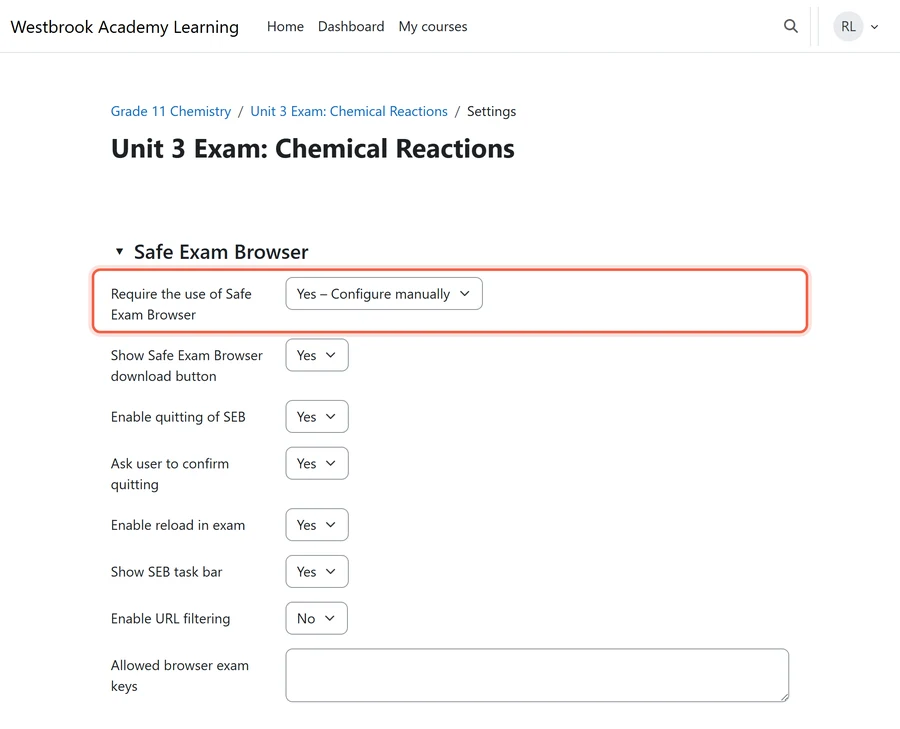
Each route touches a different system: the quiz, the SEB file, or the IdP. The setting that picks between the first two sits at the top of the quiz’s Safe Exam Browser section.
Route 1: Moodle’s Built-In Safe Exam Browser Launch
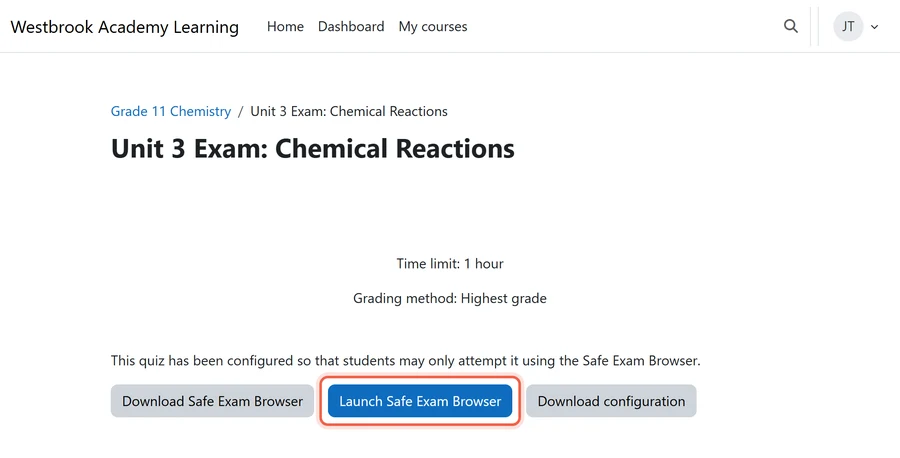
Let Moodle build the SEB configuration itself, either set by hand on the quiz or from a shared template. As a result, students see a Launch Safe Exam Browser button on the quiz page. The configuration it opens points back at that quiz.
- Where it fits: schools running a handful of SEB exams a term on standard settings.
- Where it breaks: inside SEB the student signs in a second time, and the quiz address has to survive that trip to the IdP. The widely used SAML2 authentication plugin from Catalyst is built to carry it through, so a Dashboard landing usually points at the IdP’s return settings.
- Upkeep: low. Settings live on each quiz, and a template keeps departments consistent.
Route 2: Safe Exam Browser Files Built per Exam
Yes – Upload my own config takes a .seb file built in the SEB configuration tool. The file names the quiz as its start address. Students then open it from a shortcut, an email or the school portal, and SEB starts at the quiz.
- Where it fits: managed devices, or SEB settings that Moodle’s form does not offer.
- Where it breaks: the start address is fixed in the file. A restored or duplicated quiz gets a new address, and the old file still opens the old one.
- Upkeep: medium to high. One file per exam, rebuilt whenever the quiz or its settings change, so name files by exam and date.
Route 3: Identity Provider Redirect Settings
Fix it at the sign-in end. SAML2 carries a return address through sign-in. Therefore, the IdP has to hand it back instead of sending everyone to a fixed Moodle page. It is the same work behind most Moodle SSO options.
- Where it fits: schools with a technology team that owns the IdP and SEB exams across many departments.
- Where it breaks: a sign-in started from a portal tile has no quiz address to return to. Only a sign-in that Moodle starts carries one.
- Upkeep: low day to day, but every IdP change, such as a new app registration or a certificate renewal, needs a retest inside SEB.
Choosing a Route
- A few SEB exams, standard settings: Route 1.
- Managed devices or custom SEB settings: Route 2.
- Most schools: Route 1 for the launch, plus the IdP check from Route 3 so the address survives sign-in.
Testing Safe Exam Browser with SAML2 SSO in Moodle Before Exam Day

A dry run with real student accounts is the only test that counts. That is because it is the only one that meets the second sign-in.
Conducting a Realistic Dry Run
- Accounts: real student accounts from each class sitting the exam. Never a teacher or admin account.
- Devices: every device type students will use, on the school network, with the SEB version students will have.
- Path: start where students will start (quiz link, launch file or portal) and count the clicks to the quiz.
- Timeout: leave one session idle past the IdP’s sign-in timeout and confirm it returns to the same quiz.
- Load: a full class starting together, since sign-in slows under a rush.
Run it at least five school days before the exam window. Also run it again after any Moodle, SEB or IdP change in between. The trap is a pass on a teacher’s laptop the week before: different account, different device, different result.
Developing a Robust Fallback Strategy
- Sign-in: decide in advance what happens if the IdP is down. The SAML2 plugin’s Dual login setting can keep Moodle’s own login form on screen, which only helps students who have a Moodle password.
- Wrong landing: give proctors one line to read out: My courses, the course, the quiz. Slower, but still inside SEB.
- Lost time: a quiz user or group override extends the close time for anyone held up.
- Escalation: one named person who can check both Moodle and the IdP, with their number on the proctor sheet.
Sustaining Exam Integrity Through Ownership

This is not a set-and-forget setup. Moodle upgrades, SAML2 plugin updates, new SEB releases and IdP changes can each break the launch. For that reason, it belongs in your Moodle maintenance strategy with named owners.
Assigning Clear Responsibility
- Moodle administrator: quiz SEB settings and templates, the SAML2 plugin version, and the upgrade retest.
- Identity team: the Moodle app registration in the IdP, return-address handling and certificate renewals, with notice to the Moodle administrator before any change.
- Exam coordinator: the exam calendar, the change freeze around it, and sign-off on the dry run.
- Proctors: the fallback sheet, read before every SEB exam.
Keeping the Launch Working After Upgrades
- Freeze: no Moodle, plugin, SEB or IdP changes in the two weeks before an exam window.
- Retest: after every Moodle major upgrade, SAML2 plugin update, SEB release pushed to student devices, and IdP change.
- PHP: if the site runs more than five plugins and the upgrade moves PHP to a new version (for example 8.1 to 8.3), retest the whole site. Third-party plugins, the SAML2 plugin included, break first.
- Release notes: check Moodle’s release dates and notes before planning an upgrade near exams. Moodle 5.3 is the next long-term support (LTS) release, and our guide to upgrade Moodle from 4.x to 5.3 LTS covers the timing.
Getting Expert Help with Safe Exam Browser with SAML2 SSO in Moodle

Mindfield’s Moodle specialists set up and test Safe Exam Browser with SAML2 SSO in Moodle for private schools. First, we trace where the launch loses the quiz. Then we pick the route that fits your exams and devices, and run the dry run with your staff. We also retest after each upgrade so the launch still works next term. Tell us when your next exam window opens, and we will plan back from it.
Frequently Asked Questions (FAQs)
This article may contain conceptual illustrations to help support the article content.
