


When every user sees the same banner, the announcement that matters to new students competes with the one meant for faculty, and both get ignored. Showing different Moodle banners based on user roles, cohorts, or profile data is what puts each message in front of the people it was written for. This article covers the options, from native Moodle features through to external integrations, and where each one stops being the right choice.
Engaged the team for a global retailer application development project. Schedules were consistently met with flexibility to changing scope. Was always impressed with Mindfield’s responsiveness and ability to quickly grasp the problem while offering creative solutions. Applications were of high quality and I wouldn’t hesitate to recommend Mindfield Consulting for any custom development.
Grant R
review Source: Google Reviews
Outline
- Laying the Foundation for Dynamic Moodle Banners
- Native Moodle Options for Role-Based Banner Displays
- Advanced Banner Management with Themes and Plugins
- Synchronizing External Audience Data for Moodle Banners
- Powering Dynamic Moodle Banners with Expert Support
- Frequently Asked Questions (FAQs)
Laying the Foundation for Dynamic Moodle Banners Based on User Roles

Before configuring any banner, work out how your Moodle environment already describes its people, because that is what every targeting method below has to work from.
Prerequisites and Audience Definition
The real prerequisite is not administrator access, though you will need it. It is knowing how your own site already describes its people. Specifically, which roles are actually in use, which cohorts exist, and whether custom profile fields are populated or merely defined. Every method below targets one of those three. So an audience you cannot express in them is one you cannot yet reach.
Understanding Moodle’s Audience Segmentation
Moodle offers four built-in ways to describe who a user is, and every targeting method below resolves to one of them.
- User Roles: These are fundamental to Moodle’s permission system, defining what a user can do and see. Examples include ‘Student’, ‘Teacher’, ‘Course Creator’, and ‘Administrator’.
- Cohorts: Site-wide or category-wide groups of users, often used for bulk enrollment or shared access to resources. A cohort might be ‘New Employees Q3’ or ‘Marketing Department’.
- Tenants (Moodle Workplace/IOMAD): In multi-tenancy environments, each tenant represents a distinct organization or department, providing a powerful segmentation layer.
- Custom Profile Fields: Administrators can create additional user profile fields (e.g., ‘Region’, ‘Job Title’, ‘Enrollment Status’). These fields can store specific data that can then be used for more granular targeting.
Native Moodle Options for Role-Based Banner Displays

Core Moodle has no feature called a banner, but it has several ways to show content conditionally, and those cover most of what a banner is asked to do without any plugin or custom development.
Leveraging Moodle Blocks for Conditional Content
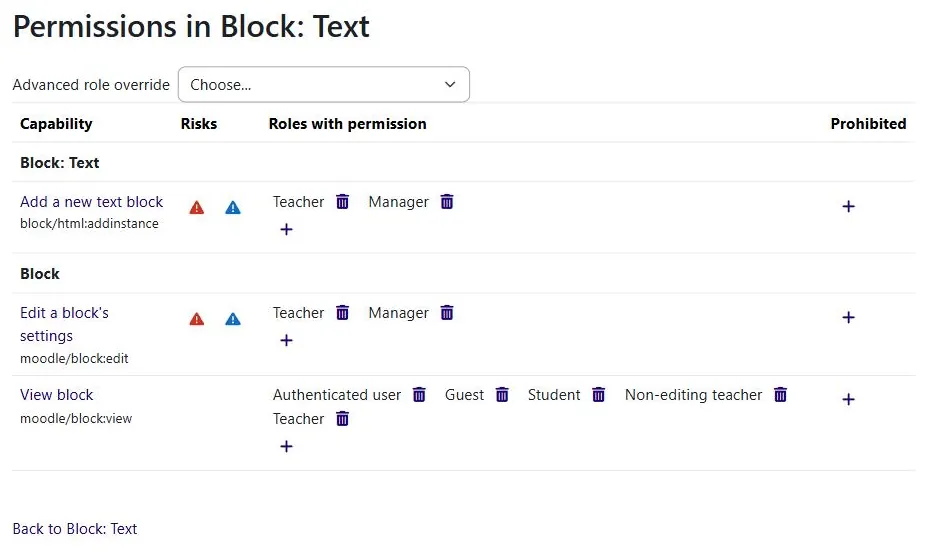
The most accessible native method for displaying dynamic content is the Text block, which Moodle called the HTML block until version 4.0. It can sit on the dashboard, on course pages, or on the site home, and which roles see it is controllable.
Setting one up is simple. Place a Text block where the audience will see it and fill it with the banner content. Then decide who it applies to. That last decision is the one people get wrong. Blocks have no Restrict access section, so role targeting happens through the block’s own Permissions page and the moodle/block:view capability. Specifically, remove the roles that should not see the banner, or prohibit them outright. Whoever remains under Roles with permission keeps seeing it.
The strength of this approach is that it needs no plugin and no development. The weakness is that it scales by duplication. One banner for two audiences means two blocks, each with its own permission set. Then every later change has to be made in both. It works well for a handful of audiences and becomes a maintenance problem past that.
Verify from the audience’s side rather than the administrator’s, because a permission mistake is invisible from an admin account.
What the Default Dashboard Can and Cannot Target
The Dashboard is the other place a standing message can live, though not in the way it is usually described. Core Moodle has a single default Dashboard, set once for the whole site. There is no per-role dashboard to configure, so any plan that assumes one is built on a feature that does not exist.
What genuinely varies by role is which blocks on that shared page a given user can see, governed by the same View block permission covered above. The page is common to everyone; its contents are not. That distinction is the entire targeting mechanism here, so it is worth settling before anyone scopes work around per-role dashboards.
The trade-off is reach against precision. The default Dashboard only applies to users who have not customized their own, and it is only seen once they land there, which makes it the wrong tool for anything time-critical. Treat it as the ambient, standing message rather than the place an urgent notice goes.
Course Access Restrictions and Activity Completion
These are not banners, but they solve the same problem. Course access restrictions and activity completion rules control what each audience can see. In fact, a section shown to one group and hidden from another carries a message just as a banner does.
A “Welcome for New Students” section that only first-time enrollees can see, or an “Instructor Resources” section only teachers reach, is a targeted message in everything but name.
What makes this different from blocks is that course sections and activities genuinely do carry a Restrict access section. Core Moodle can restrict on date, grade, a user profile field, and combinations of those through a restriction set. In addition, group and grouping become available once groups exist, and activity completion once tracking is on.
The design decision comes first, though. Work out which of those criteria your audiences actually map to before building around them. The gap between “students in their first term” and “students with a profile field set to first term” is the gap between a rule Moodle can evaluate and one it cannot.
Note that core Moodle has no Role condition under Restrict access. Targeting a section or activity at a course role needs the third-party Restriction by course role plugin (availability_role). Without it, custom profile fields and cohort-synced groups are the native equivalents.
Advanced Banner Management with Themes and Plugins

Where native features run out, themes and dedicated plugins extend Moodle banners based on user roles with richer content, scheduled display windows, and targeting that native permissions cannot express.
Theme-Level Customizations for Dynamic Banners
Many commercial and institutional themes ship with banner or hero regions, sometimes with conditional display built in. Where a theme has none, custom modifications to theme templates get to the same place.
This is developer territory: it needs someone who knows Moodle’s theme layer. The banner then ends up rendered by the theme itself, with the targeting decided before the page is built. That is why it performs best. There is no extra block to load and nothing resolved in the browser. The banner is simply part of the page.
The trade-off is ownership. Theme code is yours to maintain, which means retesting it on every Moodle upgrade. Likewise, you reapply it if you ever change theme. A plugin puts that burden on its maintainer instead. Theme-level is the right call when the targeting logic is genuinely specific to your institution and no plugin expresses it. Conversely, it is the wrong call when one already does. So establish which of those you are in before commissioning the work.
Dedicated Moodle Banner Plugins
The Moodle plugins directory carries several solutions built specifically for banners, which put creation and targeting behind an admin interface rather than in code.
Common features of banner plugins include:
- Rich Content Editor: Create banners with text, images, HTML, and styling.
- Targeting Rules: Define visibility based on roles, cohorts, specific courses, or even custom profile fields.
- Scheduled Display: Set start and end dates for banners, useful for time-sensitive announcements like enrollment deadlines or system maintenance.
- Placement Options: Choose where banners appear (top of page, specific block regions, within courses).
- Dismissal Options: Allow users to dismiss banners, preventing them from reappearing for that user.
When selecting a plugin, verify its compatibility with your Moodle version and check community reviews for stability and support. The more consequential question is ownership, because a plugin shifts upgrade maintenance onto its maintainer, which is only an advantage while that plugin stays actively maintained.
Handling Users with Multiple Roles
Targeting gets harder when people hold several roles at once, which in practice most staff do. Moodle’s context system decides which role applies where, so the same person can be a student in one course and a teacher in the next.
When configuring banners, especially with plugins or custom theme code, it is crucial to define how conflicts or overlaps in role-based visibility should be resolved. Common strategies include:
- Role priority: rank the roles, so a teacher who is also a student sees the teacher message.
- Context-specific targeting: show the teacher banner only in courses where they actually teach.
- Inclusive or exclusive: decide whether matching any target role is enough, or all of them.
Settle this before you build. Then test it with accounts that hold real role combinations, not a single clean one.
Synchronizing External Audience Data for Moodle Banners

Where the audience is already defined in WordPress, WooCommerce, or a CRM, syncing that data into Moodle extends what Moodle banners based on user roles can reach, because the segmentation then stays maintained in the system that already owns it.
Integrating with WordPress and WooCommerce for Audience Segmentation
Where Moodle sits alongside WordPress or WooCommerce, the attributes those systems already hold make useful targeting data. A purchase history, for instance, says more about what a learner wants to be told than a Moodle role does.
Integrating these systems typically involves:
- API Connections: Moodle’s Web Services API against the WordPress or WooCommerce APIs. The most control, and the most custom development.
- Custom Plugins: A bridge plugin on either side, which suits scheduled synchronization of user attributes.
- Middleware: Platforms such as Zapier or Make.com, quickest to stand up but least robust against complex Moodle data structures.
Whichever route you take, the destination is the same. External attributes land in Moodle cohorts or custom profile fields, which is what the targeting can actually read.
Utilizing Custom Profile Fields and Cohorts for Advanced Targeting
Beyond standard roles, custom profile fields and cohorts give you segmentation Moodle can actually evaluate. A profile field stores an attribute on the user, such as department, region or programme. A Restrict access rule can then test it. A cohort groups users into a named set that can be synced from an external database or a CSV upload. That matters, because the segmentation then stays current without anyone maintaining it by hand.
The decision is which of the two should carry your audience definition. Profile fields suit attributes that belong to the person and rarely change. Cohorts suit membership that is already defined elsewhere, in an HR system or a student information system. That is, membership you want mirrored into Moodle. Choosing wrong is expensive later: a scheme built on hand-populated profile fields drifts out of date. Consequently, every banner resting on it starts targeting the wrong people.
Once either is populated, banner plugins and theme code can read them, so a banner can be aimed at everyone whose department is Marketing, or at a named cohort.
Powering Dynamic Moodle Banners with Expert Support

Targeted banners get complicated once they involve theme code or data arriving from another system, and the hard part is rarely the banner itself. It is deciding which mechanism your audience definitions actually fit, before anyone builds anything. Mindfield Consulting’s Moodle specialists work through that decision with you and then deliver it, whether the answer turns out to be native permissions, a theme change, or an integration. That way you are not left maintaining a targeting scheme that never matched how your organization describes its people.
Frequently Asked Questions (FAQs)
This article may contain conceptual illustrations to help support the article content.
