


Excessive Moodle assignment notifications can overwhelm instructors and administrators, leading to important communications being overlooked in a flood of routine updates. Moodle, by default, often generates alerts for every submission, late submission, or grading event. For large courses or numerous assignments, this quickly becomes unmanageable. Understanding how to precisely control these alerts is essential for maintaining focus and ensuring critical communications receive the attention they deserve. This article provides a detailed guide on configuring Moodle to disable assignment notifications for specific activities, enhancing clarity and efficiency within your learning environment.
I recently migrated my site to Mindfield from another host, and the experience couldn’t have been better. Mindfield kept working until they were certain that my site was operating as well as it was before, and they even helped clean up a few issues to improve my site’s performance – issues my prior host never mentioned. I also found Mindfield’s communication to be excellent. Before the migration, they prepared me for what to expect, and during the migration they kept me well-informed.
Jim Benedek
review Source: Google Reviews
Outline
- Understanding Moodle’s Notification Architecture
- Step-by-Step: Disabling Moodle Notifications for a Specific Assignment Activity
- Verifying Moodle Notification Settings and Addressing Common Pitfalls
- Streamline Moodle Notifications with Moodle Expert Guidance
- Frequently Asked Questions (FAQs)
Understanding Moodle’s Assignment Notification Architecture

Moodle uses multiple layers to manage notifications, including site-wide settings, user notification preferences, and activity-level controls. Administrators need to understand how these layers interact to manage Moodle assignment notifications effectively and prevent unnecessary alerts in busy courses.
Global vs. Activity-Level Control
Moodle’s notification system is designed with flexibility in mind. At the highest level, global site settings determine which notification methods are available and their default states. For example, administrators can enable or disable email or web notifications across the entire Moodle instance. That global layer is also where you start on Moodle notifications not sending and how to fix it. However, these global settings often only provide broad control, making it challenging to fine-tune communication for individual course components. Therefore, for specific scenarios like managing assignment notifications, activity-level settings are crucial. These settings allow instructors and administrators to override global defaults for a particular assignment. This targeted approach prevents notification fatigue, ensuring that only relevant updates are sent for each activity. For example, submission notifications can be disabled for a low-stakes assignment while remaining enabled for a critical project.
Required Permissions and Access
To modify assignment notification settings, specific Moodle permissions are necessary. Users with the editing teacher role, or another role with the required activity-editing capabilities, can adjust assignment settings within the course. However, site-wide notification configurations require administrator access. Understanding these access levels is paramount before attempting any changes. Before proceeding, ensure you have the appropriate role. Additionally, it is always a best practice to back up your Moodle site or the specific course before making significant configuration changes, especially in a production environment. This precaution mitigates any potential data loss or unexpected behavior, and it is cheap insurance against Moodle course copy, backup, or restore not working when you need the restore most. You can find detailed backup procedures in the official Moodle documentation on Course backup and restore.
Step-by-Step: Disabling Moodle Notifications for a Specific Assignment Activity

Disabling Moodle assignment notifications for individual activities involves navigating to the assignment’s settings and adjusting its specific notification preferences. This procedure ensures that automatic alerts for submissions, late submissions, or grade updates are curtailed for that particular activity. The steps below guide you through this process.
Accessing Assignment Settings
Start by locating the target assignment within your Moodle course and opening its configuration page. The process remains consistent across Moodle versions, while exact button placement varies by Moodle theme.
- Navigate to the Course: From the Moodle dashboard, select the course containing the assignment you wish to modify.
- Turn Editing On: In the course page, click the Turn editing on button, usually found in the top right corner. This activates the editing interface for the course.
- Locate the Assignment: Scroll down to find the specific Assignment activity within the course section.
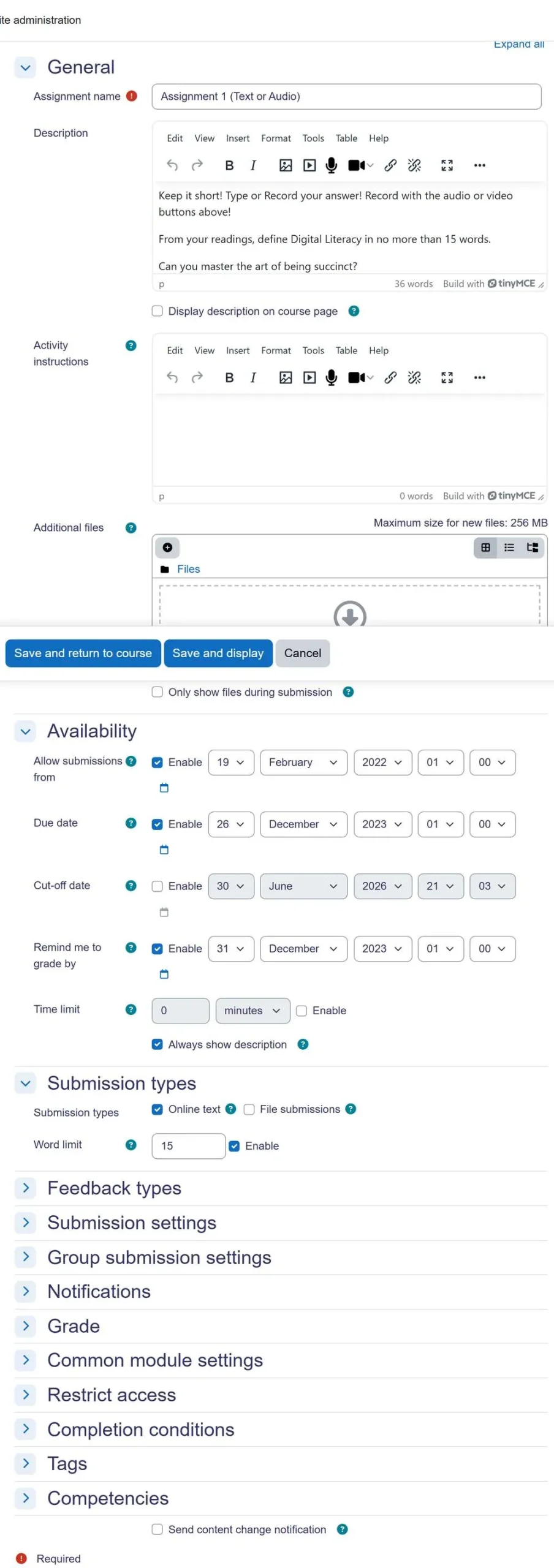
- Edit Assignment Settings: Click the Edit dropdown menu next to the assignment name, then select Edit settings. This action will open the assignment’s configuration page.
Adjusting Notification Preferences
Once inside the assignment settings, you will find options related to notifications. These settings control whether Moodle generates alerts for various events associated with the assignment. Look for the “Notifications” or “Submission settings” sections.
- Scroll to Submission Settings: On the assignment settings page, locate the Submission settings section. Expand it if it is collapsed.
- Configure ‘Require students to click the submit button’: Ensure this setting is set to Yes. While not directly a notification setting, it helps manage when a submission is considered final, which can indirectly affect when notifications are triggered.
- Locate ‘Notify graders about submissions’: This is the primary setting for disabling notifications to instructors and other graders. Set this option to No. This action prevents Moodle from sending alerts when students submit their work.
- Locate ‘Notify graders about late submissions’: Similarly, if you wish to prevent notifications for assignments submitted past the deadline, set this option to No. This reduces further email clutter for late work. Switching them off deliberately is a different matter from why Moodle assignment deadline reminders are not sent when you still want them.
- Review Other Notification-Related Fields: Check the assignment settings and installed plugins for additional notification options, such as grade notifications, and disable any alerts that are not required. Notification gaps that no setting closes are usually a sign of when Moodle plugins stop being enough.
- Save Changes: After making your adjustments, scroll to the bottom of the page and click Save and return to course or Save and display to apply the new settings.
Leveraging Activity Completion for Notification Control
While direct notification settings are key, Moodle’s Activity completion feature can also indirectly influence the perceived volume of notifications. By configuring completion criteria, you can ensure that activities are only marked as complete under specific conditions. This can prevent premature or unwanted notifications from other integrated tools. Furthermore, this provides a structured way to manage the flow of student progress. For instance, if an assignment requires a specific submission status before it’s considered complete, other linked activities or tools might wait to trigger their own notifications. This cascading effect helps in creating a more controlled notification environment. Therefore, reviewing the Activity completion section within your assignment settings can offer additional layers of control.
Verifying Moodle Notification Settings and Addressing Common Pitfalls

After adjusting the assignment settings, it is crucial to verify that the changes have taken effect as intended. Simply saving the settings does not always guarantee the desired outcome, especially if other global or user-specific preferences are overriding activity-level configurations. A structured verification process can prevent unexpected notification deliveries.
Reviewing User Notification Preferences
Moodle also allows users to configure how enabled notifications are delivered through channels such as email, web, or mobile. Activity settings determine whether an assignment notification is generated, while user notification preferences determine how enabled messages are received. To verify the overall notification behavior, consider these steps:
- Simulate a Student Submission: If possible, use a test student account to submit an assignment to the modified activity. Observe if any notifications are received by the instructor or other relevant roles.
- Check Instructor Notification Preferences: As an administrator, navigate to an instructor’s user profile (Site administration > Users > Accounts > Browse list of users, then click on the instructor’s name). Go to Preferences > Notification preferences.
- Inspect ‘Assignment’ Notifications: Within the notification preferences, locate the Assignment section. Ensure that settings like “Assignment submitted” or “Assignment late submission” are configured as desired. While activity settings should take precedence for sending the notification, a user’s preference determines how they receive it (e.g., email, web).
- Review Event Monitoring: For advanced troubleshooting, check Moodle’s Event monitor (Site administration > Reports > Event monitor). This tool logs Moodle events, including notification triggers, which can help diagnose if a notification was sent despite configuration.
System-Wide Impact and Performance
Disabling unnecessary assignment notifications reduces the number of messages Moodle needs to process through scheduled tasks and helps administrators and instructors focus on important alerts. However, notification settings should reflect the importance of each assignment. Disabling alerts for a critical activity increases the risk of missed submissions or deadlines.
Regularly review your notification strategy to ensure it supports both course management and administrative efficiency. Message processing runs on cron, so it is worth ruling out Moodle cron not running: common symptoms, causes, and fixes before anything else. When troubleshooting, administrators can also run the Moodle cron job manually using:
[path/to/php] [path/to/moodle]/admin/cli/cron.php
This runs Moodle’s scheduled tasks, including queued message processing.
Addressing Common Pitfalls
Several of the seven common Moodle assignment problems and how to solve them show up when managing assignment notifications:
-
- Cached Settings: If a configuration change does not appear as expected, purge Moodle caches through Site administration > Development > Purge all caches and test the assignment again.
- Plugin Interference: Review third-party plugins for notification settings or overrides that affect assignment messaging. Disable or reconfigure the relevant plugin during troubleshooting.
- Server-Level Email Issues: If notifications fail for specific users or across the entire site, verify the server’s email configuration and mail delivery logs — the same ground to cover when Moodle is not sending emails at all. Refer to Moodle’s Mail configuration documentation or review the configuration with your server administrator.
- Role Overrides: Custom roles or role overrides can sometimes grant or restrict notification capabilities in unexpected ways, which is one of the reasons why Moodle roles and permissions stop working. Review the capabilities for relevant roles (e.g., mod/assign:viewgradernotifications) if you suspect permission conflicts.
By systematically checking these areas, administrators can effectively troubleshoot and ensure that Moodle assignment notifications behave as expected.
Streamline Moodle Notifications with Moodle Expert Guidance

Managing notifications across a large or complex Moodle environment requires a clear understanding of Moodle’s core architecture, plugin interactions, message settings, and server configuration. Activity-level controls provide precise management for individual assignments, while a complete notification strategy ensures that essential messages reach the right users without creating unnecessary noise.
Mindfield Consulting’s Moodle specialists bring extensive experience in optimizing Moodle environments for performance and usability. Our team configures notification settings, resolves plugin and server-level conflicts, and develops solutions aligned with your institution’s communication requirements. The result is a Moodle platform that delivers essential information efficiently while allowing educators and learners to stay focused on teaching and learning.
