


Moodle notifications play an important role in keeping students aware of course updates, assignment deadlines, feedback, forum activity, announcements, and other learning tasks. When notifications are configured well, students are less likely to miss important dates and teachers receive fewer support questions about where to find information.
However, Moodle notifications are not controlled by one single setting. They depend on activity settings, user preferences, message outputs, email configuration, cron, scheduled tasks, enrolment status, and sometimes plugins or custom workflows. If one part of this system is not working correctly, students may not receive the reminders or alerts they expect.
This article explains how Moodle notifications work, what events trigger automated messages, why notifications may fail, and how schools and training organizations can configure more reliable communication for students and parents.
I am Director of Rahab Ministry (a program of Youth Unlimited). We are impressed with Mindfield’s IT specialists in helping us redesign a website (Rahab.yugta.ca) and their ongoing support. They were responsive and helped us think ahead instead of waiting for us to tell them what needed to be done. We will continue to look forward to their support.
Joanna Yee
Director, Rahab Ministry.
review Source: Google Reviews
Outline
-
-
How Moodle Notifications Work
-
Events That Trigger Automated Notifications
-
Common Reasons Moodle Notifications Fail
-
Cron and Notification Settings That Affect Communication
-
Configuring Notifications for Students and Parents
-
Best Practices for Keeping Students Informed
-
Related Moodle Notification Articles
-
Expert Moodle Support for Better Communication Workflows
-
Frequently Asked Questions(FAQs)
-
How Moodle Notifications Work

Moodle uses a messaging and notification system to send information to users through different channels. Depending on the site configuration, users may receive notifications inside Moodle, by email, through the Moodle mobile app, or through other enabled message outputs.
Notifications can be generated by many types of Moodle activity. For example, a student may receive an alert when a teacher posts an announcement, updates an assignment, grades submitted work, replies in a forum, or adds an activity with a due date.
It is important to understand that Moodle does not always send an email for every event. Some items may appear in the dashboard timeline, calendar, or notification menu instead. Whether a message becomes an email depends on the site’s message output settings, the user’s notification preferences, and whether Moodle’s background tasks are running properly.
For this reason, troubleshooting Moodle notifications requires looking at both the course setup and the site administration settings.
Events That Trigger Automated Notifications
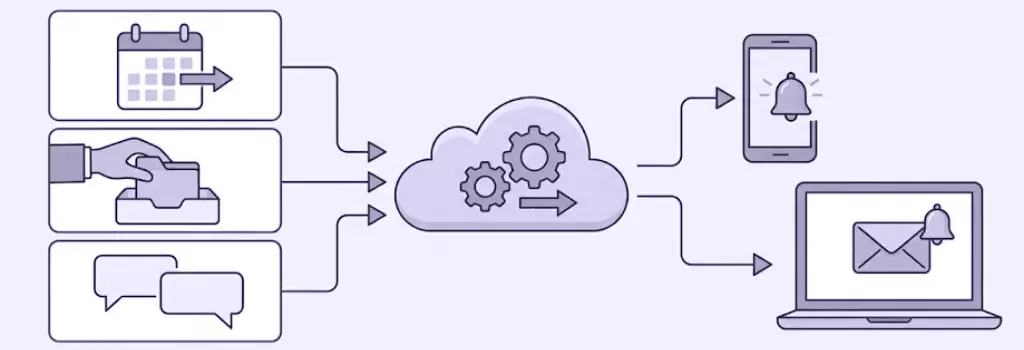
Moodle notifications are usually triggered by user activity, course updates, or scheduled background processes. Common notification events include assignment due dates, assignment submissions, grading updates, feedback release, forum posts, private messages, course announcements, calendar events, course completion updates, and enrolment related changes.
Assignment deadlines are one of the most common examples. When an assignment has a due date, Moodle can display it in the calendar and dashboard timeline. Depending on the setup, students may also receive related reminders or notifications.
Forum activity is another common trigger. If students are subscribed to a forum, Moodle may notify them when new posts or replies are added. Teachers can also use the Announcements forum to send course wide messages to enrolled students.
Grades and feedback can also trigger alerts. When a teacher grades an assignment or releases feedback, Moodle may notify the student that new feedback is available.
Some notifications are immediate, while others depend on scheduled tasks. For example, digest style emails and queued messages often rely on cron to process and send messages at the correct time.
Common Reasons Moodle Notifications Fail

One of the most common reasons Moodle notifications fail is that cron is not running correctly. Moodle relies on cron for many background tasks, including sending queued messages, processing forum digests, updating timelines, and running scheduled notification jobs. If cron stops or runs too infrequently, notifications may be delayed or never sent.
Another common issue is disabled message outputs. Moodle can support several notification channels, but email, web notifications, and mobile notifications must be enabled and configured correctly. If email output is disabled, students may only see notifications after logging into Moodle.
User preferences can also block notifications. Students and teachers may turn off certain notification types without realizing it. A student might still see a deadline in Moodle but not receive an email because their personal notification settings prevent that message from being sent by email.
Email delivery issues are also common. Moodle may generate the notification correctly, but the message can still fail because of SMTP errors, invalid user email addresses, spam filtering, blocked sender domains, or missing DNS records such as SPF, DKIM, and DMARC.
Course setup can create another layer of confusion. If an activity is hidden, the course is unavailable, the due date is not enabled, or a student is not properly enrolled, Moodle may not send the expected notification. In multi tenant or IOMAD environments, company visibility, cohort sync, and enrolment rules can also affect who receives messages.
Cron and Notification Settings That Affect Communication

Cron should be one of the first areas checked when Moodle notifications are unreliable. Site administrators can review scheduled task status under Site administration, then Server, then Scheduled tasks. If tasks have not run recently, Moodle’s background processing may be delayed.
In most production Moodle sites, cron should run frequently, often every minute depending on the hosting environment and site requirements. A healthy cron setup helps Moodle process messages, send forum digests, update completion data, and refresh dashboard information.
Administrators should also review the site’s message outputs. This includes checking whether email notifications are enabled, whether mobile notifications are configured, and whether the site allows users to control their notification preferences.
SMTP settings should be tested as well. A Moodle site can appear to send messages successfully, but if the mail server rejects or filters the messages, students may never receive them. Testing with both internal and external email accounts can help identify whether the issue is inside Moodle or with email delivery.
Sites that use notification plugins should also review plugin status after upgrades. Custom reminders, parent alerts, digest emails, and report based notifications may rely on third party plugins or custom scheduled tasks. If these plugins are outdated or disabled, communication workflows may stop working even though Moodle core notifications still work.
Configuring Notifications for Students and Parents

For students, reliable communication starts with clear course setup. Teachers should use assignment due dates, keep activities visible when they are ready, post announcements consistently, and avoid relying on hidden activities for important communication.
Students should also understand where to check notifications. Moodle may show important information in the notification menu, dashboard timeline, calendar, email inbox, or mobile app. A short student guide can reduce confusion and help learners know where to look.
For parents or guardians, Moodle requires additional planning. Standard Moodle does not automatically send every student notification to parents. Parent communication usually depends on mentor roles, parent accounts, custom reports, notification plugins, or integration with another communication system.
A common setup is to assign parents or guardians a Mentor or Parent role linked to a student account. This can allow parents to view selected student information, depending on permissions. However, this does not automatically guarantee that parents will receive every deadline or activity notification by email.
For organizations that need parent alerts, a weekly digest may work better than instant notifications for every activity. A digest can include upcoming deadlines, overdue assignments, recent grades, or missing work. This approach is usually easier for families to manage and more useful than a large number of separate emails.
Best Practices for Keeping Students Informed

The best Moodle notification strategy combines technical reliability with clear course communication. Administrators should make sure cron is running, message outputs are enabled, SMTP is working, and scheduled tasks are monitored after upgrades or server changes.
Teachers should use Moodle’s built in communication tools consistently. Announcements, activity due dates, calendar events, and feedback notifications are more effective when courses are organized and dates are accurate.
Organizations should also document notification expectations. Students should know which messages will be sent by email, which will appear inside Moodle, and which require the Moodle mobile app. Teachers should also know when to use Announcements, forums, assignment feedback, or manual messages.
For larger Moodle sites, it is helpful to create a communication policy. This can define which reminders are immediate, which are sent as digests, which go to students, and which go to parents, managers, or instructors. Once the policy is clear, Moodle can be configured or extended to support it.
Regular testing is also important. After a Moodle upgrade, plugin update, SMTP change, or server migration, administrators should test common notification workflows. This includes assignment reminders, forum posts, announcements, grading feedback, and mobile notifications.
Related Moodle Notification Articles
Moodle notifications can fail for different reasons, depending on whether the issue is connected to assignments, forums, email delivery, cron, user preferences, or course communication settings. If you are troubleshooting a specific notification problem, these related Moodle articles may help you explore the issue in more detail.
- Why Moodle Assignment Deadline Reminders Are Not Sent
This article explains why students may not receive deadline alerts for assignments, how Moodle due dates and scheduled tasks work together, and what administrators should check when assignment reminders are delayed or missing. - Moodle is not Sending Emails
This article covers broader email delivery issues, including SMTP configuration, spam filtering, invalid email addresses, and message output settings. It is useful when Moodle appears to generate notifications correctly but users still do not receive emails.
Together, these resources give administrators and teachers a clearer view of how Moodle communication works across different tools. By checking related notification settings, course activity settings, scheduled tasks, and email delivery, organizations can build a more reliable communication workflow for students, parents, and instructors.
Expert Moodle Support for Better Communication Workflows

Moodle notifications involve more than one setting. A Moodle expert can review cron, scheduled tasks, message outputs, SMTP configuration, activity settings, enrolment rules, user preferences, and plugin behavior together. This makes it easier to identify whether a communication problem is caused by Moodle configuration, server processing, email delivery, or course design.
For schools, associations, and training organizations, reliable notifications can improve learner engagement and reduce support requests. An experienced Moodle team can also help design stronger communication workflows, such as parent digests, overdue assignment reports, automated reminders, course completion alerts, and custom scheduled messages that match the organization’s needs.
