


When a teacher opens a Moodle course after an upgrade to Moodle 5.2, they might find crucial guidance or embedded images above a group of activities have simply vanished. This disappearance occurs even though the administrator’s upgrade report indicated no issues with the process. Moodle 5.2 no longer displays subsection descriptions, yet the associated text remains stored within the database, invisible to all users. This change necessitates a deliberate, site-wide decision about how to manage this hidden content.
I recently migrated my site to Mindfield from another host, and the experience couldn’t have been better. Mindfield kept working until they were certain that my site was operating as well as it was before, and they even helped clean up a few issues to improve my site’s performance – issues my prior host never mentioned. I also found Mindfield’s communication to be excellent. Before the migration, they prepared me for what to expect, and during the migration they kept me well-informed.
Jim Benedek
review Source: Google Reviews
Outline
- What Changed in Moodle 5.2 and Why Teachers Will Notice First
- Identifying Courses with Subsection Descriptions Before Upgrading
- Moodle’s Two Built-In Conversion Tasks
- Choosing Between Converting and Deleting
- Rolling Out the Moodle 5.2 Upgrade
- Expert Guidance for Moodle 5.2 Transitions
- Frequently Asked Questions (FAQs)
What Changed in Moodle 5.2 and Why Teachers Will Notice First

The upgrade to Moodle 5.2 introduces a significant alteration in how subsection descriptions are handled. This change impacts course presentation and can initially surprise course authors and learners. Understanding the technical shift and its practical implications is vital for administrators.
The Evolution of Subsections
Subsections, introduced in Moodle 4.5 LTS as the Subsection activity, allowed course sections to hold nested groups of activities. These subsections previously carried their own descriptions. They also had their own separate page.
This structure offered flexibility for organizing complex courses. In Moodle 5.2, however, the display behavior for subsections has changed. Subsections now always display inline within their parent section.
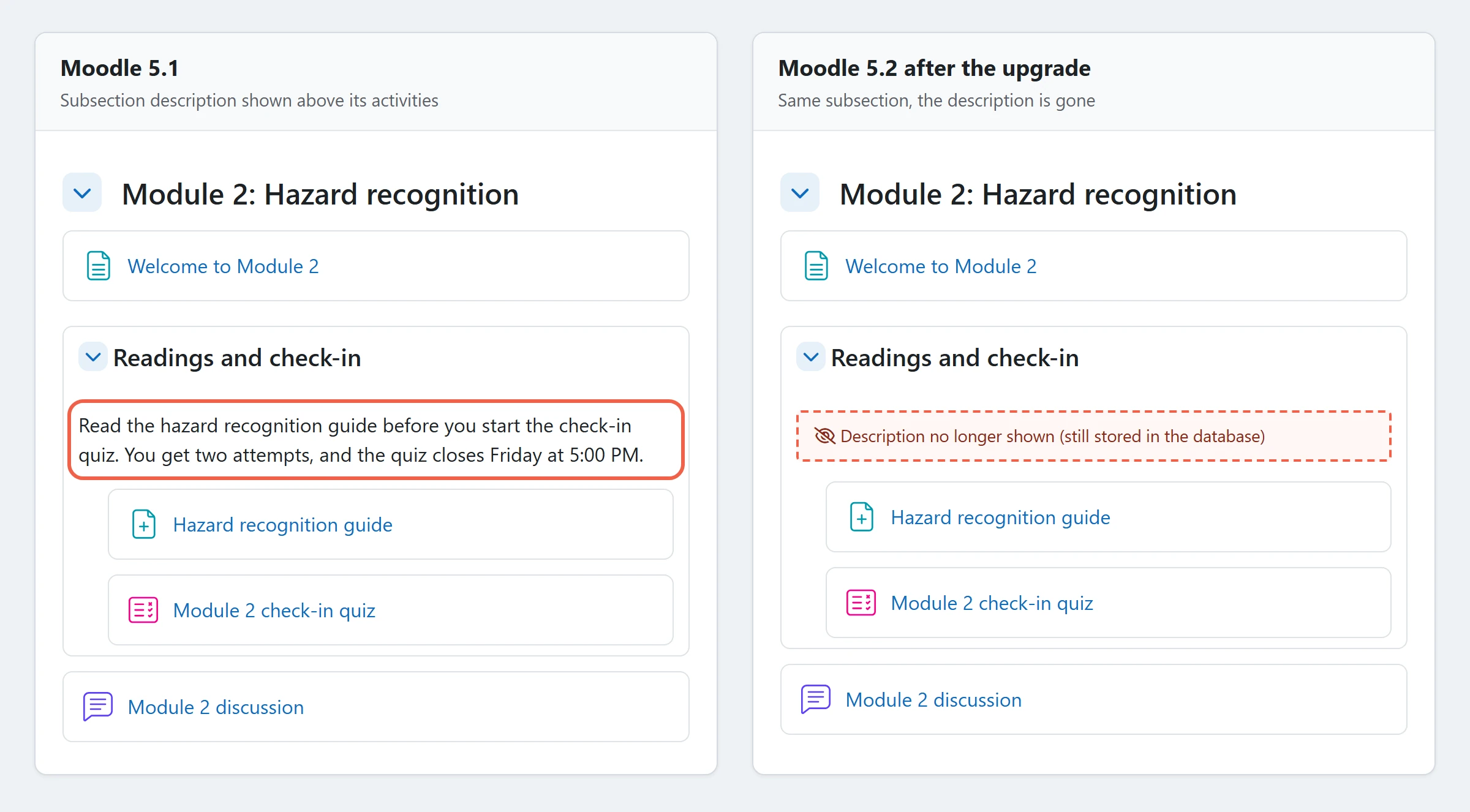
The separate subsection page is no longer used. As a result, the description field has been removed from the subsection edit form, and any existing descriptions are no longer displayed anywhere on the course page.
Why Administrators May Miss the Change
While Moodle 5.2 stops displaying subsection descriptions, it does not delete them. The associated text remains stored in the database. Even so, administrators often miss the change, because the upgrade itself does not stop or issue a warning.
The only place Moodle surfaces it is a notice on the Subsection plugin’s settings page in site administration, which reports how many “subsection descriptions that are no longer visible to users” the site holds. However, it does not provide specific details about which courses or teachers own these descriptions.
The User Experience Impact
Teachers are typically the first to notice the absence of subsection descriptions. After all, they built these descriptions and they look at their course pages every week. The sudden disappearance of previously visible content can be disruptive.
A subsection description typically held various types of information that learners relied upon:
- Instructions for the activities grouped below it.
- Contextual information or a reading note for a specific module.
- An embedded image or file that provided visual guidance.
- A due-date reminder specific to that group of activities.
Without these descriptions, learners might miss critical information. This change can lead to confusion and a less guided learning experience.
Identifying Courses with Moodle 5.2 Subsection Descriptions Before Upgrading

Before initiating an upgrade to Moodle 5.2, understanding which courses rely on subsection descriptions is crucial. Moodle’s built-in tools provide a site-wide count, but a more granular approach is necessary for informed decision-making. This strategic inventory prevents unexpected content loss.
Understanding the Site-Wide Count
Moodle 5.2 tells administrators only how many subsection descriptions exist across the entire site. It does not provide a list of the specific courses or teachers who own them. Therefore, producing a detailed course list requires a deliberate effort.
Instead, a Moodle partner or host can run a database-level report before the upgrade. This report identifies every course that contains a subsection description.
Engaging Course Authors
While the site is still running on Moodle 4.5, 5.0, or 5.1, subsection descriptions remain visible. This visibility provides a critical window for teachers to review their own courses. Administrators should ask teachers to identify which descriptions carry content that learners genuinely need.
That way, valuable instructional material is not lost by accident. Descriptions can also hold embedded files, such as images or attachments. These files are particularly important because deleting a description permanently removes the associated files.
Converting a description, by contrast, moves those files to the newly created Text and media area.
Considering Backups and Course Copies
Backups add a further layer of risk. When an older course backup is restored into a Moodle 5.2 environment, subsection descriptions are ignored and are not restored. This behavior means that any content within those descriptions will be absent from the restored course.
Moodle’s course copy functionality is built upon its backup and restore mechanisms. Consequently, a course copy made on the upgraded site arrives without them as well. The site’s conversion tool cannot recover these descriptions afterward because it only works on descriptions already present on the live site.
Therefore, any archived backups that the organization plans to restore later must be included in the pre-upgrade inventory. This strategic consideration helps prevent unexpected content gaps. For more information on related issues, review common causes for Moodle course copy, backup or restore not working.
| What to Find | Why it Matters | Who Owns It |
|---|---|---|
| Courses with subsection descriptions | Identifies scope of impact. | Moodle administrator, host or partner |
| Descriptions with embedded files or images | Files are lost if deleted; moved if converted. | Teachers, Moodle administrator |
| Descriptions holding instructions learners act on | Critical for learning continuity; requires conversion or manual migration. | Teachers, Director of Learning |
| Courses in active delivery during the upgrade window | Immediate impact on live learners; requires careful planning. | Teachers, Director of Learning |
| Archived backups you expect to restore later | Descriptions are lost on restore in Moodle 5.2. | Moodle administrator, host or partner |
Moodle’s Two Built-In Conversion Tasks
Moodle 5.2 provides administrators with two distinct, site-wide options for managing existing subsection descriptions. These options appear only after the upgrade and require careful consideration due to their irreversible nature.
Accessing Conversion Options
Both the “Migrate descriptions” and “Delete descriptions” options appear on the Subsection plugin’s settings page in site administration, and only while hidden descriptions remain on the site. Once either is chosen, the mechanics are the same:
- Confirmation: the administrator confirms, and the dialogue states that the action cannot be undone.
- Background task: Moodle queues an ad-hoc task that works through the site in batches of 100 and re-queues itself until no descriptions remain.
- Waiting count: the settings page shows how many descriptions are still waiting while the task runs.
- Cron: the site’s scheduled task runner has to be working, or nothing happens.
If cron is not running, the waiting count simply never moves, which is one of the quieter problems covered in our guide to fixing Moodle upgrade issues.
The “Migrate Descriptions” Option
When the “Migrate descriptions” task runs, each hidden description becomes a visible Text and media area. In detail:
- Placement: the new Text and media area sits at the top of its subsection, visible to learners.
- Content: the description’s text and any embedded files move across to it.
- Cleanup: the original description is then cleared.
- Prerequisite: the Text and media area activity must be enabled on the site. If it is disabled, the task skips and the descriptions stay hidden.
The “Delete Descriptions” Option
The “Delete descriptions” task offers a more definitive approach. Running this task permanently removes every subsection description and all associated files from the database. This action is irreversible.
It is a suitable choice if the hidden descriptions were primarily for formatting, were outdated, or duplicated content already present elsewhere in the course.
The Site-Wide Implication
A critical aspect of both the “Migrate descriptions” and “Delete descriptions” tasks is their scope: both are strictly site-wide. There is no option to apply either task to a single course or a select group of courses. This global application underscores the importance of a strategic, pre-upgrade assessment.
Doing nothing after the upgrade leaves the descriptions in a temporary third state. The text remains stored but invisible. Moodle’s code notes that these conversion and deletion tasks will be removed in Moodle 7.0.
At that point, any descriptions still stored will be removed, so leaving them is a deferral, not a decision.
| Option | What Learners See Afterwards | What it Changes | Reversible |
|---|---|---|---|
| Migrate | New visible Text and media area at the top of the subsection. | Creates new activities, moves content and files, clears original descriptions. | No |
| Delete | Subsection content appears without any description. | Permanently removes descriptions and associated files from the database. | No |
| Leave for now | Subsection content appears without any description. | Descriptions remain hidden but stored; removed in Moodle 7.0. | Yes, until Migrate or Delete is run |
Choosing Between Converting and Deleting, and Testing Either First
Deciding how to handle Moodle 5.2 subsection descriptions requires a strategic assessment of content value and administrative effort. The choice between converting, deleting, or manually curating content has distinct implications for course presentation and teacher workload. This decision should always be made on a copy of the site first.
When to Convert Descriptions
Converting descriptions is the appropriate choice when they carry content that learners actively need or rely upon. This includes critical instructions, important contextual notes, or essential embedded media. The primary cost of this approach is the sheer volume of new items.
Every converted description becomes a new visible Text and media area activity on the course page. This change occurs in every affected course simultaneously. Teachers may then need to tidy up or remove unwanted new items on a course-by-course basis, which can be a significant post-upgrade task.
When to Delete Descriptions
By contrast, deleting descriptions is suitable when they were mostly used for simple formatting, are outdated, or duplicate information already present elsewhere. This option streamlines course pages by removing redundant or irrelevant content. The main cost, however, is the permanent loss of anything that might have mattered.
This includes embedded files. In other words, once deleted, the content cannot be recovered through Moodle’s built-in tools.
The Curated Approach
A middle path exists, but it is a strategic decision, not a Moodle button. In this approach, teachers manually copy the few descriptions that truly matter into the course before the site-wide delete task is run. This allows for precise control over which content is preserved and how it is presented.
As a result, it minimizes the clean-up effort, as only essential content is retained. This option shifts the workload to individual teachers before the upgrade.
Mitigating Risks Through Staging
The decision to convert or delete subsection descriptions is site-wide and irreversible, making pre-testing on a staging environment critical. Running either conversion task without prior testing on a copy of the live site carries significant risk. A single click changes every course across the entire platform and cannot be undone.
The migrate and delete buttons do not know which course you meant. They act on every subsection on the site, once, and there is no way back.
Therefore, a thorough rehearsal on a staging copy is essential. When testing on a copy, administrators should check several key aspects:
- Course Page Layout: How does the course page read with new Text and media area items placed at the top of each subsection?
- Embedded Content Display: Do embedded images and files still display correctly within the new Text and media areas?
- Unwanted Items: Identify courses where the new items are redundant or were never meant for learners.
- Task Duration: Estimate how long the background conversion or deletion task takes on a site of that size.
- Progress and Completion: Confirm whether anything tied to course progress or completion appears different after the conversion.
Meanwhile, if the site already runs regression checks before each upgrade, these belong in the same pass, alongside the wider automated testing strategies for Moodle upgrades.
Rolling Out the Moodle 5.2 Upgrade

Because the change reaches teachers first, the rollout is mostly a communication plan. In practice, the rollout comes down to seven decisions, in this order:
- Communicate with Teachers: Before the upgrade, inform teachers about the impending changes to subsection descriptions. Clearly explain what content will disappear and what the site has decided regarding conversion or deletion.
- Build the Course List: Generate the comprehensive list of courses using subsection descriptions, as outlined in Section 2. This list informs targeted communication and follow-up.
- Rehearse on a Staging Copy: Conduct a full rehearsal of the upgrade process and the chosen conversion or deletion task on a staging copy of the live site. Have a few teachers review their courses on this staging environment to confirm expected behavior.
- Full Live Site Backup: Take a complete and verified backup of the live site immediately before initiating the upgrade. This backup serves as a critical rollback position if unforeseen issues arise. For more details, consult emergency backup and migration strategies for Moodle.
- Perform the Upgrade: Upgrade the live site. The same change applies if the site is heading straight for 5.3 LTS, and the wider version path is covered in our guide to upgrade Moodle from 4.x to 5.3 LTS.
- Run the Chosen Task: Execute the chosen site-wide task (migrate or delete descriptions) on the live site. Monitor the Subsection settings page and wait for the “waiting” count to clear, indicating completion.
- Teacher Confirmation: Following the task’s completion, have teachers confirm that their courses display as expected and that critical content is accessible.
Above all, the order matters: teachers hear about the change before it happens, and the one-way button is pressed on a copy before it is pressed on the live site.
Expert Guidance for Moodle 5.2 Transitions
Mindfield plans Moodle 5.2 upgrades around the course content, not just the version number. We find the courses that still use subsection descriptions, rehearse the upgrade and the chosen conversion on a staging copy, and help brief teachers on what will change. Then we run the migrate or delete task on the live site and confirm the waiting count clears. If your site is due for 5.2 or 5.3 LTS, talk to us before the button is pressed.
Frequently Asked Questions (FAQs)
This article may contain conceptual illustrations to help support the article content.
