


Moodle is often one of the most important systems in an organization. It holds user accounts, course content, quiz results, completion records, certificates, reports, and sometimes payment or compliance related workflows. Because of this, Moodle can become a target for attackers, bots, scanners, and automated traffic.
A Moodle security issue does not always begin with an obvious warning. Sometimes the first sign is a slow page, repeated failed login attempts, strange traffic from unknown IP addresses, a locked admin account, unexpected plugin behaviour, or a server that suddenly reaches its resource limit. In more serious cases, a Moodle site may become unavailable because of a denial of service attack, compromised credentials, vulnerable plugins, or weak hosting controls.
This article explains how Moodle administrators can recognize early warning signs, understand when a hack or DoS operation may be taking place, and strengthen their LMS before a small issue becomes a major outage.
I am Director of Rahab Ministry (a program of Youth Unlimited). We are impressed with Mindfield’s IT specialists in helping us redesign a website (Rahab.yugta.ca) and their ongoing support. They were responsive and helped us think ahead instead of waiting for us to tell them what needed to be done. We will continue to look forward to their support.
Joanna Yee
Director, Rahab Ministry.
review Source: Google Reviews
Outline
-
-
What a Moodle Attack May Look Like
-
Detecting Brute Force and Credential Stuffing Attempts
-
What Moodle Logs Show and What They Do Not Show
-
Securing Moodle Before an Incident Happens
-
What to Do During a Suspected Moodle Attack
-
Building a Long Term Moodle Security Plan
-
Turn Security Signals Into Action
-
Frequently Asked Questions(FAQs)
-
What a Moodle Attack May Look Like

A Moodle attack can target different parts of the system. Some attacks focus on user accounts. Others target public pages, plugins, login forms, file access, or the server itself.
Common warning signs include:
- A sudden increase in failed login attempts
- Many login attempts from unfamiliar IP addresses
- The same username being tested repeatedly
- The site becoming slow when normal user activity is low
- CPU, memory, or database usage rising without a clear reason
- Large numbers of requests to login, course, quiz, or profile pages
- Unexpected admin users, role changes, or plugin changes
- More PHP errors, database errors, or timeout messages than usual
- Traffic from unknown bots, scanners, or suspicious user agents
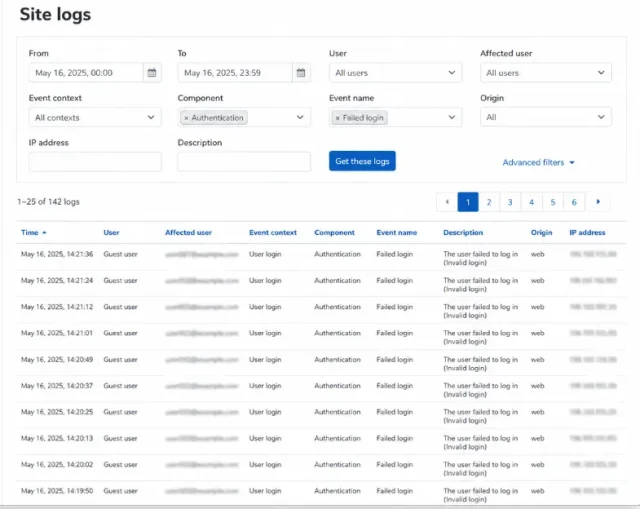
What to notice: One failed login is common. Several attempts against the same user account within seconds or under a minute are more concerning because they can indicate automated password testing or brute-force activity.
Administrators should not assume every spike is an attack. Heavy quiz activity, backups, scheduled reports, cron tasks, or a plugin issue can also cause slow performance. The key is to compare Moodle logs, server logs, and resource usage together.
Detecting Brute Force and Credential Stuffing Attempts

One of the most common Moodle security threats is repeated login testing. Attackers may use leaked passwords, common passwords, or automated username and password combinations.
A few failed logins are normal. A pattern is more concerning.
Look for:
- Many failed logins against one admin account
- Many usernames tested from one IP address
- Attempts happening every few seconds
- Login attempts outside normal working hours
- Attempts against old, disabled, or generic accounts
- Attempts against names such as
admin,manager,teacher, ortest
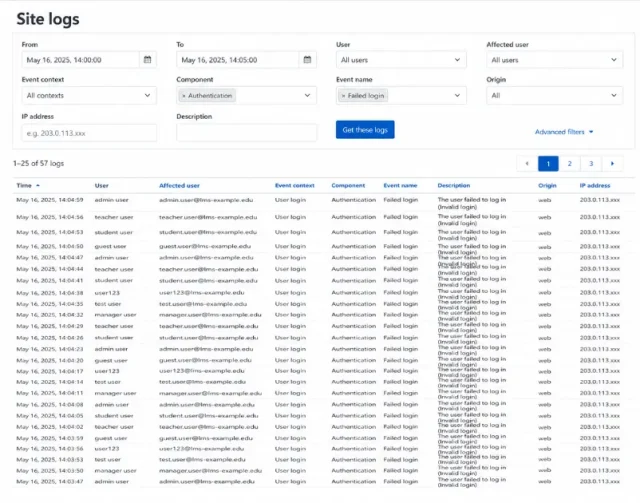
What to notice: The unusual part is not simply that a login failed. The warning sign is the pattern—an unexpected or fake account being targeted repeatedly within a short period. When the same username, IP address, or login event appears again and again, administrators should investigate whether the requests are automated.
Moodle logs can help identify this behaviour. Administrators can filter logs by time, user, event type, or IP address to understand whether the activity is isolated or part of a larger pattern.
What Moodle Logs Show and What They Do Not Show

Moodle logs are most useful for investigating activity that Moodle itself has processed. They help administrators understand who did what, where, and when inside the LMS.
What Moodle Logs Can Show
Moodle logs can help identify:
- Login and failed-login activity
- User and account activity
- Course and activity access
- Quiz attempts and submissions
- Role or permission changes
- Profile updates
- Administrative actions
- Activity performed from recorded IP addresses
For example, if the same account receives multiple login attempts within a very short period, Moodle logs can help administrators compare the usernames, timestamps, events, and IP addresses involved.
What Moodle Logs Cannot Show by Themselves
Moodle only records requests that reach and are processed by the application. It does not provide a complete view of everything happening at the server or network level.
For issues such as heavy bot traffic, denial-of-service attacks, firewall blocks, or server resource exhaustion, administrators also need evidence from:
- Web server access and error logs
- Web application firewall logs
- CDN or proxy logs
- PHP logs
- Database monitoring
- CPU and memory monitoring
- Network and hosting metrics
For example, a DDoS attack can overwhelm the web server or network before Moodle processes enough of the requests to create useful application-level records.
Use Both Views During an Investigation
A useful way to think about the difference is:
Moodle logs answer:
What happened inside Moodle?
Server and network logs answer:
What was happening around Moodle?
A complete investigation usually requires both. Repeated failed logins can be investigated primarily through Moodle logs, while a sudden traffic flood or resource spike requires server, firewall, CDN, and hosting evidence as well.
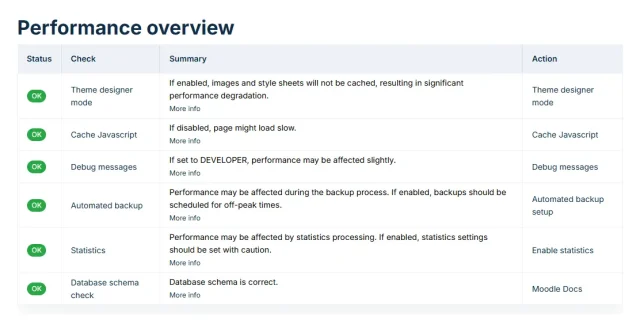
This is why Moodle logs should be reviewed together with web server logs, firewall logs, PHP logs, database logs, hosting graphs, and monitoring alerts. Moodle logs show what happened inside the LMS. Server and network evidence help explain what happened around it.
Securing Moodle Before an Incident Happens

Moodle security is strongest when it is managed in layers. The LMS, hosting environment, plugins, user accounts, backups, and monitoring process all matter.
Run Moodle Security Checks
Moodle includes a Security checks report that helps administrators identify risky settings. This report can highlight issues such as unsafe file access, error display settings, or configuration problems that should be reviewed.
Keep Moodle Core, Plugins, and Themes Updated
Outdated Moodle code can expose a site to vulnerabilities that have already been fixed in supported releases. Moodle core, themes, authentication plugins, activity plugins, report plugins, and custom plugins should therefore be included in a defined update process.
Updates should first be tested on staging, particularly when the site includes custom code, IOMAD, commercial themes, SSO, payment integrations, or other business-critical plugins.
Balance Upgrade Effort with Security
Every organization has to balance upgrade effort against security exposure.
One approach is to standardize on Moodle Long-Term Support (LTS) releases. LTS versions receive security support for a longer period, allowing organizations with complex integrations to reduce the frequency of major-version upgrades while maintaining a supported Moodle branch.
Another approach is to move through Moodle’s regular supported releases more frequently. This gives organizations earlier access to platform improvements and newer functionality, but it also requires more frequent compatibility testing for themes, plugins, custom code, and integrations.
The important distinction is that staying on an LTS release does not mean ignoring Moodle updates.
Even organizations following an LTS strategy should apply supported point releases and security fixes in a timely manner. The choice is primarily about how frequently the organization adopts a new major Moodle version, not whether known security fixes should be installed.
A practical strategy is:
- Lower-complexity Moodle sites: Adopt supported releases more frequently when testing effort is manageable.
- Highly customized or integration-heavy sites: Use an LTS-based major-upgrade cycle to reduce compatibility risk.
- All production sites: Monitor Moodle security releases and keep the currently deployed supported branch patched.
The safest strategy is not necessarily the one with the most frequent major upgrades. It is the one that keeps the LMS on a supported, patched version while giving the organization enough time to properly test changes before production deployment.
What to Do During a Suspected Moodle Attack

When a Moodle site shows signs of compromise or denial of service traffic, the first step is to preserve evidence and stabilize access.
A practical response process includes the following steps.
Confirm the Symptoms
Check whether the problem affects the full site, one course, one plugin, one role, or one page. This helps separate a real attack from a Moodle performance issue.
Review Moodle Logs
Look for failed logins, unusual role changes, account updates, course changes, plugin changes, and suspicious user activity.
Review Web Server Logs
Check whether one IP address, many IP addresses, or a suspicious user agent is generating unusual traffic.
Check Server Resources
Review CPU, memory, disk usage, database connections, PHP processes, and web server processes. A resource spike can show whether Moodle is under pressure.
Reduce Exposure Temporarily
Depending on the incident, administrators may need to block IP addresses, enable stronger firewall rules, disable public registration, restrict access to sensitive pages, or place the site behind stronger traffic protection.
Preserve Logs and Backups
Do not delete useful evidence too early. Keep relevant Moodle logs, web server logs, database backups, file backups, and screenshots.
Patch and Review
After the site is stable, review vulnerable components, rotate compromised credentials, confirm admin accounts, check plugin status, and verify that the site is clean before returning to normal operations.
Building a Long Term Moodle Security Plan

Moodle security should not only happen after an incident. A safer LMS needs regular review and maintenance.
A strong long term plan should include:
- Monthly Moodle update review
- Plugin and theme compatibility review
- Moodle Security checks review
- Admin account audit
- Backup and restore testing
- Web server log review
- Monitoring for traffic spikes
- Password policy review
- Staging site testing before upgrades
- Clear incident response process
- Staff training for phishing and credential safety
Backups are especially important. A clean and tested backup can make the difference between a short recovery and a serious service disruption.
A good long term plan also defines how the organization wants to handle Moodle updates. Some teams choose a conservative LTS based plan because they value stability and predictable testing cycles. Others apply updates more frequently because they want the latest security improvements as soon as possible. Both approaches can be valid, but the decision should be documented, reviewed, and supported with staging tests, plugin checks, and rollback planning.
Turn Security Signals Into Action

Hiring a Moodle expert can help your organization move beyond guessing when suspicious activity appears. A slow site, repeated failed logins, unusual traffic, or sudden server spikes may point to a security issue, but they can also be caused by cron delays, plugin errors, large reports, backups, or hosting limits. A Moodle expert can review Moodle logs, server evidence, plugin behaviour, user permissions, and hosting configuration together, then identify whether the issue is a real threat, a performance problem, or a configuration weakness.
A Moodle expert can also help strengthen the site before the next incident happens. This may include reviewing Security checks, auditing admin accounts, cleaning up unused plugins, testing updates on staging, improving backup practices, and setting up better monitoring. Instead of reacting only when the LMS is already slow or unavailable, expert support gives organizations a clearer security process and a safer Moodle environment for learners, teachers, and administrators.
