


When private schools transition their digital learning environments, a common challenge arises. That is, they need to import Common Cartridge 1.3 into Moodle. Many schools leverage Schoology, a popular learning management system widely used by K-12 institutions. Also, it exports course content using the Common Cartridge 1.3 standard. However, Moodle’s built-in importer primarily supports older versions, typically up to 1.1, creating a significant gap for administrators.
This incompatibility means valuable course structures, advanced quiz types, and rich interactive content may not transfer seamlessly. As a result, this leads to substantial manual effort or data loss. In this article, we will explore the nuances of this version discrepancy and illustrate what a complete 1.3 import entails. Then, we will show how a purpose-built importer, which Mindfield proposes to build, could close this gap.
I recently migrated my site to Mindfield from another host, and the experience couldn’t have been better. Mindfield kept working until they were certain that my site was operating as well as it was before, and they even helped clean up a few issues to improve my site’s performance – issues my prior host never mentioned. I also found Mindfield’s communication to be excellent. Before the migration, they prepared me for what to expect, and during the migration they kept me well-informed.
Jim Benedek
review Source: Google Reviews
Outline
- The Common Cartridge Gap: Schoology 1.3 vs. Moodle’s Built-in Importer
- Envisioning a Full Common Cartridge 1.3 Import in Moodle
- Mindfield’s Proposed Common Cartridge 1.3 Importer
- Validating Imported Courses Before Deployment
- Expert Support for Seamless Moodle Migrations
- Frequently Asked Questions (FAQs)
The Common Cartridge Gap: Schoology 1.3 vs. Moodle’s Built-in Importer

First, the transition of course content between learning management systems (LMS) often relies on interoperability standards. Also, Common Cartridge (CC), an open standard developed by the IMS Global Learning Consortium, aims to facilitate this process. However, version differences between Schoology’s exports and Moodle’s native import capabilities create significant hurdles. Because of this, administrators struggle to import Common Cartridge 1.3 into Moodle.
Understanding Common Cartridge 1.3 Exports from Schoology
Specifically, Schoology’s course export functionality generates Common Cartridge packages, often adhering to version 1.3. Furthermore, this version is designed to encapsulate a wide array of digital learning materials and activities. Consequently, it supports modern pedagogical elements and technical specifications. These exports typically include:
- Question and Test Interoperability (QTI) 1.2 Quizzes: Tests and question banks use the Common Cartridge profile of QTI 1.2.1. Since the Common Cartridge 1.3 specification, one cartridge can carry several question banks instead of one.
- Learning Tools Interoperability (LTI) Links: External tools travel as LTI links, the same 1.x link format cartridges have carried since version 1.1. Version 1.3 adds metadata, such as curriculum standards, to each link.
- Formatted Pages and Embedded Media: Pages and assignment instructions travel as HTML web content, with their formatting, images and embedded media.
- Advanced Assignment Features: Rubrics, submission types, and grading scales are often part of the package.
Indeed, Common Cartridge 1.3 is a robust standard. Thus, it aims to ensure that the fidelity of a course’s design is maintained when moved between compliant platforms. Ultimately, this level of detail is critical for educational institutions. Because of this, it preserves the instructional intent and interactive elements of a course.
Limitations of Moodle’s Standard CC 1.0/1.1 Importer
However, Moodle’s built-in course import tools provide support for Common Cartridge versions up to 1.1. This covers basic content like files, pages, and simple quizzes. However, it falls short when attempting to import Common Cartridge 1.3 into Moodle. This version disparity means many advanced features present in a Schoology 1.3 export are not recognized. Also, they are not correctly mapped. In fact, the Moodle tracker issue MDL-60803 highlights this ongoing challenge.
Specifically, the Moodle 1.0/1.1 importer often struggles with:
- Multiple Question Banks: The 1.0/1.1 format allows one question bank per cartridge, and version 1.3 removed that limit. So question banks and the quizzes built on them are the first things to check after any conversion.
- LTI Link Metadata: In version 1.3, each LTI link can carry its own description and curriculum standards, which a 1.0/1.1 importer has no place for.
- Rich Text Formatting and Embedded Media: Complex layouts, specific fonts, and embedded multimedia from Schoology pages may degrade, appearing as plain text or broken links.
- Rubrics and Advanced Grading: Detailed rubrics and custom grading schemes are typically lost, forcing instructors to recreate them from scratch.
Consequently, administrators face a significant hurdle. Consequently, they must either accept a degraded course experience or invest considerable time in post-import manual adjustments. Therefore, this situation directly impacts the efficiency of migration.
It also affects the quality of the learning content. Therefore, understanding these limitations is the first step toward finding a viable solution.
The Impact of Data Loss When You Import Common Cartridge 1.3 into Moodle
Attempting to import Common Cartridge 1.3 into Moodle using incompatible tools or partial conversion methods causes issues. As a result, it invariably leads to data loss. This loss is not merely cosmetic; it directly affects the pedagogical integrity and functionality of the course. When content is not accurately mapped, the learning experience suffers. Furthermore, instructors lose valuable time rebuilding elements.
The common consequences of such data loss include:
- Compromised Assessments: Quizzes might lose their specific question types, answer feedback, or grading logic. This can render them ineffective for accurate student evaluation.
- Broken External Tool Links: LTI integrations may fail to launch, severing connections to essential third-party resources or interactive activities. This disrupts the flow of learning.
- Degraded Content Presentation: Pages and resources may lose their rich formatting, embedded videos, or interactive elements, reducing engagement and clarity.
- Lost Instructor Workload: Features like rubrics, advanced assignment settings, and specific grading criteria must be manually re-entered. This adds hours of work for educators.
These issues underscore the need for a robust import solution. A simple file transfer is insufficient. Instead, a tool that intelligently interprets and maps the nuances of Common Cartridge 1.3 to Moodle’s capabilities is essential.
Without it, the promise of seamless LMS migration remains unfulfilled. This often results in frustration and increased operational costs for schools.
Envisioning the Ideal Way to Import Common Cartridge 1.3 into Moodle

Imagine a scenario where the process to import Common Cartridge 1.3 into Moodle is seamless. Every element from the original Schoology course translates perfectly. This ideal state requires an importer that understands the intricate structure of the 1.3 standard.
It must then skillfully map these components to Moodle’s diverse activity and resource types. Such a tool would revolutionize course migration. It would save countless hours of manual reconstruction and ensure pedagogical fidelity.
Core Components Required to Import Common Cartridge 1.3 into Moodle
A truly comprehensive Common Cartridge 1.3 import process within Moodle would prioritize the accurate transfer of all advanced course components. This goes beyond basic files and text. It ensures that the interactive and assessment-rich elements are fully preserved.
Consequently, the learning experience remains intact. Such an importer would handle:
- Advanced Quiz Types: Complex question formats, such as calculated, pattern-match, or essay questions with specific grading criteria, would be faithfully reproduced. This also includes embedded media within questions or feedback.
- Working LTI Links: Each LTI link would become a Moodle External tool activity that launches once the tool is registered on the site, so students reach the same third-party applications.
- Page Formatting Fidelity: All styling, embedded multimedia (images, videos, audio), and interactive elements from pages and assignments would transfer without degradation. This ensures visual consistency.
- Assignment and Grading Structures: Detailed rubrics, multiple submission types, group assignments, and custom grading scales would be mapped to Moodle’s assignment module. This preserves assessment methodologies.
- Discussion Forums and Groups: Structured discussions, along with their associated settings and group configurations, would translate into Moodle forums and groups. This maintains collaborative activities.
- Metadata and Course Settings: Important course-level metadata, completion tracking settings, and activity restrictions would be preserved. This ensures administrative continuity.
Therefore, a comprehensive importer would not just move content. It would intelligently rebuild the course’s functional architecture within the new Moodle environment. This level of detail is paramount for maintaining educational quality. It also reduces the post-migration workload significantly.
Seamless Mapping of Schoology Structures to Moodle Activities
The essence of a successful Common Cartridge 1.3 import lies in its ability to intelligently map Schoology’s pedagogical structures. That is, it maps them to Moodle’s equivalent activities and resources. This isn’t a one-to-one filename copy. Instead, it involves understanding the intent behind each Schoology item.
Then, it translates that intent into the most appropriate Moodle counterpart. This strategic mapping ensures that courses function as intended on the new platform.
Consider these examples of how Schoology elements would translate:
| Schoology Element | Moodle Activity/Resource | Key Features Preserved |
|---|---|---|
| Assignment | Assignment | Submission types, grading scales, rubrics |
| Quiz/Test | Quiz | Question banks (several per cartridge), QTI 1.2 questions, attempt limits |
| Discussion | Forum | Discussion topics, group settings, grading |
| Page | Page | Rich text, embedded media, formatting |
| File/Folder | File/Folder | Document types, organization, access settings |
| External Tool (LTI) | External Tool | LTI link, launch URL |
This mapping goes beyond simple equivalence. It ensures that associated settings, such as grading criteria, availability dates, and completion conditions, are carried over. For instance, a Schoology assignment with a specific rubric should become a Moodle assignment. Also, that rubric must be properly attached and configured.
This level of detail is crucial for maintaining the integrity of the course design. It also ensures that instructors do not need to manually recreate complex elements.
What a Moodle Course Looks Like After a Complete Common Cartridge 1.3 Import
Visualizing the outcome helps to understand the power of a complete Common Cartridge 1.3 import. After a successful migration, a Moodle course would appear functionally identical to its Schoology predecessor. The course page would display a familiar layout, with activities and resources logically organized.
Instructors would recognize their content instantly. Moreover, learners would experience a consistent learning path.
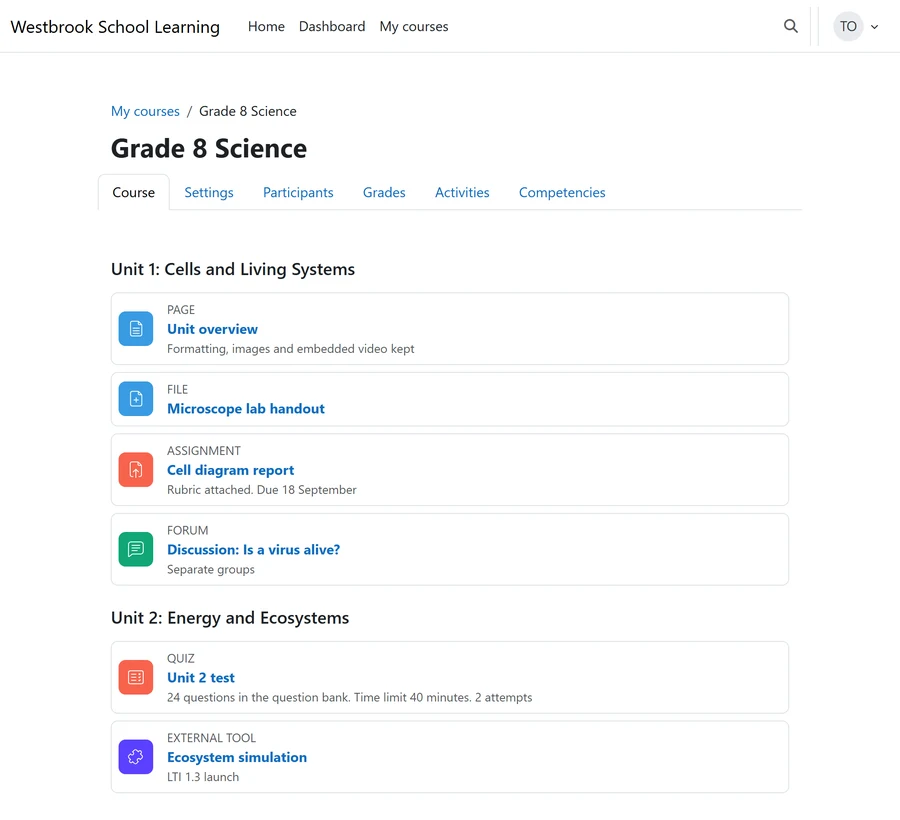
An ideal imported Moodle course would feature:
- Organized Sections: Each weekly or topical section would appear as expected, with all associated activities and resources nested correctly.
- Functional Activities: Quizzes would launch with all questions, timers, and grading rules intact. Assignments would display submission options and attached rubrics. Forums would be ready for discussion.
- Rich Content Resources: Pages would render with their original formatting, images, and embedded videos appearing correctly. Files would be accessible.
- Integrated External Tools: LTI links would open their external platforms, such as Pearson MyLab or Turnitin, once each tool is registered on the Moodle site.
- Accurate Gradebook: All graded activities would be correctly linked to the Moodle gradebook, with appropriate weighting and aggregation methods applied.
This fidelity reduces the learning curve for both instructors and students. It also ensures that the educational institution maximizes its investment in Moodle course development. Such a system effectively addresses the complexities of a 1.3 import. As a result, it transforms a daunting task into a smooth transition.
Mindfield’s Proposed Tool to Import Common Cartridge 1.3 into Moodle
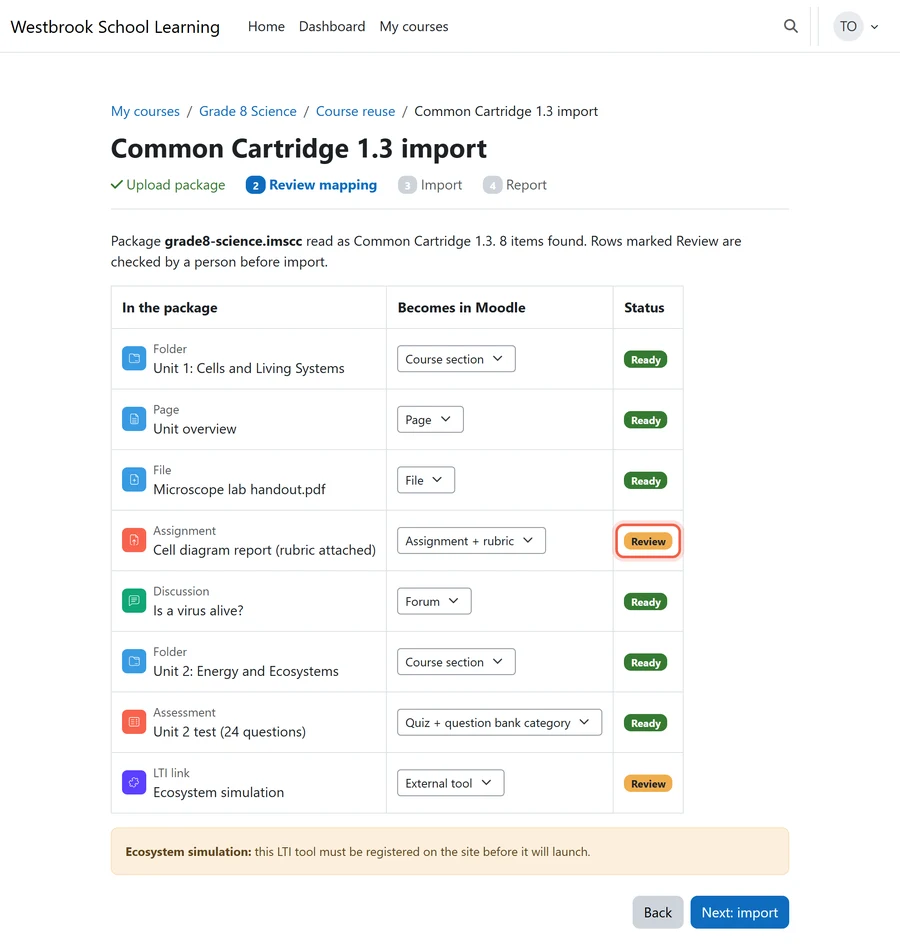
Mindfield has not released a Common Cartridge 1.3 importer. This section describes the tool we propose to build for schools leaving Schoology, and the renderings show how it could look. If your school needs one before then, we can scope it as part of your migration project.
Bridging the Version Gap to Import Common Cartridge 1.3 into Moodle
The idea is simple. The tool would read the 1.3 package as it is, so nobody has to convert it to an older version first and lose items on the way. Then it would show staff where every item will land before anything is written to the course.
The design would rest on four parts:
- Direct 1.3 reading: The tool reads the package manifest as version 1.3, with no conversion step in between.
- A mapping preview: Every item gets a Moodle destination that staff can change before import.
- Clear flags: Items that need a person, such as a rubric or an external tool not yet set up on the site, are marked for review instead of being dropped.
- An import report: A record of what came across and what is left to finish, which the validation step below starts from.
Intelligent Mapping of Schoology Elements to Moodle Equivalents
Mapping is where the value would sit. Rather than unpacking files and stopping, the tool would match each Schoology item type to the closest Moodle activity. As a result, the course works on day one instead of just holding the content.
Here is how the proposed tool would handle the common Schoology items:
Detailed Element Mapping
- Schoology Assignment to Moodle Assignment: The description, attached files, due date and grading would come across. A rubric would be flagged so a teacher can check its levels.
- Schoology Test/Quiz to Moodle Quiz: Questions would land in a question bank category, with the quiz built on top. Question types Moodle can’t match would be listed in the report, not dropped.
- Schoology Discussion to Moodle Forum: Each discussion would become a forum that opens with the original prompt.
- Schoology Page/File to Moodle Page/File Resources: Pages would keep their formatting, and files and links would come across as Moodle resources.
- Schoology LTI Link to Moodle External Tool: The link would become an External tool activity. An LTI tool has to be registered on the Moodle site first, so the importer would flag it until an admin has done that.
So teachers would check a short list of flagged items instead of rebuilding whole courses.
Preserving Question Banks and Advanced Settings
A question bank is often a teacher’s biggest asset, so the proposed tool would treat it with care. Questions would go into the Moodle question bank under their own category, ready to reuse across quizzes.
The tool would aim to keep:
- Category structure: Question groupings from Schoology become question bank categories.
- Common question types: Multiple choice, true/false, short answer and essay questions convert to their Moodle equivalents. Anything without a match is listed in the report.
- Feedback and scoring: Per-question feedback and point values travel with each question.
- Quiz settings: Time limits and attempt limits are set on the Moodle quiz where the package includes them.
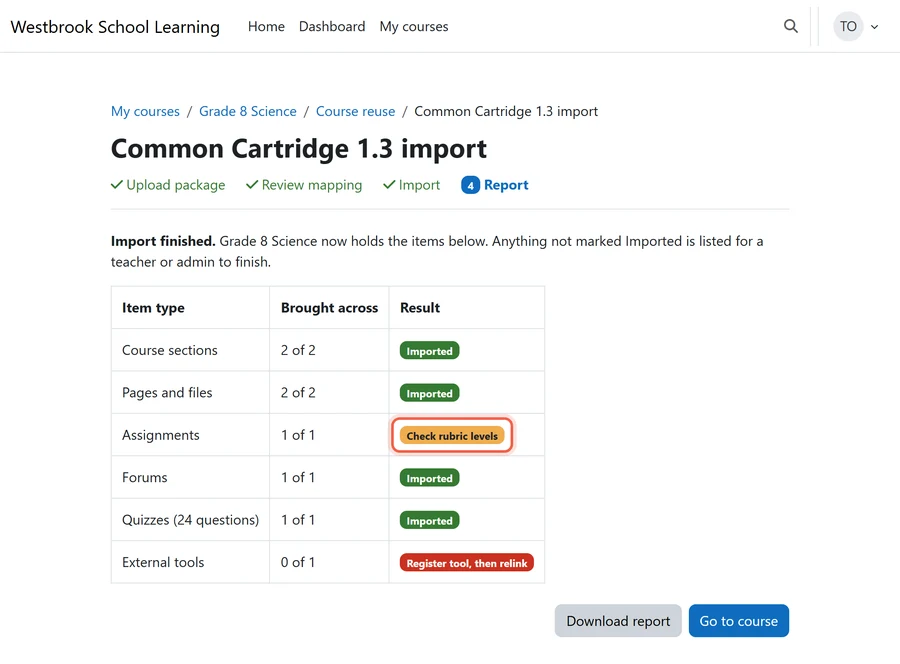
Instructors could then reuse their assessments right away and spend their time on the few items the report flags.
Validating Imported Courses Before Deployment

Successfully migrating course content with an import tool is only half the battle. The crucial final step involves thorough validation. This ensures that every course functions as intended before being made available to instructors and learners.
A systematic review process identifies and rectifies any inconsistencies or errors, including ones automated Moodle testing might miss. Consequently, it guarantees a smooth and reliable learning experience. This validation phase is non-negotiable for maintaining academic integrity and user satisfaction.
Common Pitfalls and Troubleshooting Strategies
Even with a robust importer, some issues can arise during the import. Anticipating these common pitfalls and having clear troubleshooting strategies is essential for a smooth migration. Proactive identification and resolution prevent minor issues from escalating into major disruptions.
Common issues include:
- Broken Embedded Media: Sometimes, videos or interactive elements embedded from external services (e.g., YouTube, Vimeo) might not render.
- Strategy: Check the embed codes for correct syntax and ensure the external service is accessible from the Moodle server. Manually re-embed if necessary.
- Unsupported Question Types: Very niche or highly customized question types might not have a direct Moodle equivalent.
- Strategy: Identify these questions during the review. Either convert them to the closest Moodle type or manually recreate them. Consider using a Moodle plugin if a suitable one exists for the specific question type.
- LTI Tool Configuration Mismatches: External tools might fail to launch due to incorrect consumer keys, shared secrets, or launch URLs.
- Strategy: Verify LTI configuration details in Moodle’s External Tool settings against the provider’s documentation. Test the tool with a fresh configuration.
- Formatting Discrepancies: Minor layout or font differences might appear due to Moodle’s theme or CSS.
- Strategy: Review the most critical pages. Apply manual adjustments using Moodle’s rich text editor or, for widespread issues, consider custom CSS specific to the imported content.
A detailed log of the import process is invaluable for troubleshooting. This log can pinpoint exactly where an error occurred. It also provides clues about the nature of the problem.
Therefore, a systematic approach to identifying and resolving these issues minimizes post-migration headaches. It ensures a stable and functional Moodle environment.
Expert Support for Seamless Moodle Migrations

Migrating complex course content, particularly when moving a Common Cartridge package from platforms like Schoology, presents significant technical and logistical challenges. The nuances of data mapping, version compatibility, and post-import validation demand specialized expertise. Mindfield Consulting’s specialists offer end-to-end Moodle support for these migrations. We ensure your valuable educational content transfers accurately and efficiently, allowing your institution to focus on teaching and learning rather than technical hurdles.
Frequently Asked Questions (FAQs)
This article may contain conceptual illustrations to help support the article content.
