

When your Moodle site is integrated with iMIS (Intelligent Membership Information System) for single sign on (SSO), a service interruption can disrupt user access, produce confusing errors, or leave staff unsure which system is responsible. Because Moodle and iMIS communicate in real time during login, an outage on either side can appear similar to end users. This article helps administrators recognize whether Moodle or iMIS is offline, interpret error messages correctly, and take effective steps to diagnose and resolve the issue while maintaining clear communication with users.
Working with Mindfield is a life changing experience. From Product knowledge to technical expertise the team has gone above and beyond the call of duty more times then I can count.
Greg Shorland
Funeral Learning Hub
Outline
Understanding the Link Between Moodle and iMIS
Moodle and iMIS communicate constantly during authentication. iMIS verifies a user’s credentials, while Moodle grants course access once that verification succeeds. Because both systems rely on each other, even a short interruption can break the login flow. Knowing how data moves between Moodle and iMIS is the first step toward recognizing which system is actually offline.
In most Moodle–iMIS integrations, iMIS serves as the identity provider and Moodle functions as the learning platform. When users attempt to sign in, Moodle redirects them to iMIS to verify their credentials. After successful verification, iMIS returns user information such as name, email, and role back to Moodle, which then grants access to courses.
If iMIS becomes unavailable, users will never complete the login process. If Moodle fails, users may authenticate successfully in iMIS but encounter blank screens or database errors afterward. Knowing how the systems interact helps administrators diagnose the right cause without unnecessary troubleshooting on the wrong side.
Common Causes of Outages

When users cannot log in, the problem usually lies in one of two places: Moodle’s infrastructure or IMIS’s authentication services. Each system has its own potential failure points, from overloaded web servers and database errors to expired SSL certificates or unreachable APIs. Understanding these typical causes allows administrators to focus troubleshooting efforts where they are most effective.
When Moodle Is Down
- Database server not responding
Moodle may display an “Error reading from database” message when its database becomes unreachable or overloaded. This typically occurs if the MySQL or MariaDB service stops or exceeds its connection limits.
- Database configuration or connection failure
If Moodle cannot connect to its database due to incorrect credentials or a stopped database service, users see “Error: Database connection failed.” This error confirms that Moodle is the source of the downtime.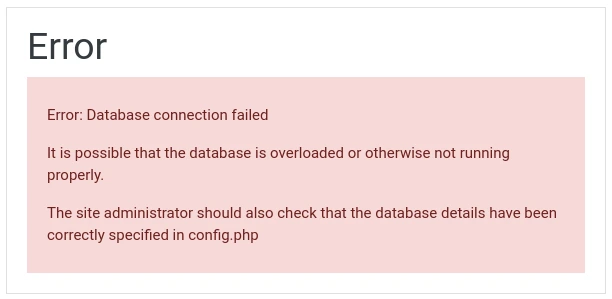
- SSO token or authentication failure
When Moodle cannot complete the iMIS login handshake, the system returns a red “There was a problem logging you in” message. This occurs when iMIS fails to provide a valid authentication token.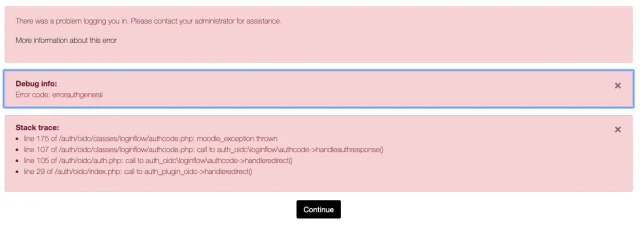
When iMIS Is Down
- iMIS authentication or API endpoint unreachable
If iMIS is offline or its authentication URL cannot be reached, users encounter a browser error such as “This site can’t be reached” or “Connection was reset.” This means the iMIS server itself is down or blocked by the network.
- iMIS internal runtime error
When iMIS is running but its internal services fail, users may see a .NET runtime page reading “Server Error in ‘/’ Application.” This indicates iMIS is reachable but cannot process authentication requests.

Troubleshooting Steps

Clear and logical troubleshooting saves time when access is interrupted. Instead of guessing which system is responsible, administrators should follow a sequence of simple checks—reviewing error messages, testing each system directly, and verifying configuration details. This structured process makes it easier to determine whether Moodle or iMIS is at fault and to bring users back online quickly.
1. Observe the Error Message
Start by noting exactly what users see. Error messages often provide valuable clues:
| Error Message | Likely Source | What It Means |
|---|---|---|
| “This site cannot be reached” or “Connection timed out” | Could be either | Network or DNS problem; test both systems directly |
| “Invalid login please contact administrator” | iMIS | iMIS authentication failed or token not returned |
| “Error reading from database” or “Site under maintenance” | Moodle | Moodle database or web server unavailable |
| “SSO token invalid or expired” | iMIS | Session expired or authentication service not responding |
| Blank white page after redirect | Could be either | Moodle did not receive valid data from iMIS or PHP error occurred |
2. Test Access to Each System Directly
Try to open Moodle and iMIS separately in your browser:
-
Moodle example:
https://learning.example.com -
iMIS example:
https://imis.example.com
If Moodle loads but iMIS does not, the issue lies with iMIS. If iMIS loads but Moodle returns errors, Moodle is offline. If both pages load yet login still fails, the connection between the two systems may be broken.
3. If Moodle Appears Unavailable
Check Moodle’s internal components before assuming network issues.
-
Review Moodle logs under
/moodledata/moodle.logor navigate to Site administration → Reports → Logs to find PHP or database errors. -
Restart the web and database services using commands such as
systemctl restart apache2orservice mysql restart. -
Verify database credentials in
config.phpto confirm Moodle can reach the database server. -
Confirm that maintenance mode is disabled and disk space is not exhausted.
-
Review any recent plugin or theme installations that may have caused instability.
If Moodle is cloud hosted, also review the provider’s system status or restart the virtual instance. During downtime, post a temporary notice so users understand the issue is under investigation.
4. If iMIS Appears Unavailable
When iMIS login pages fail to load or return gateway errors such as 502 or 504, proceed with the following:
-
Attempt to visit the iMIS site directly and verify whether the login page displays.
-
Check the SSL certificate expiration date to ensure secure access remains valid.
-
Use commands like
pingorcurl https://imis.example.comfrom the Moodle server to verify connectivity. -
Try logging into iMIS as an administrator. If that fails, the iMIS system itself is offline.
-
Contact your iMIS administrator or hosting provider to confirm whether scheduled maintenance or authentication API outages are in progress.
During iMIS downtime, users cannot authenticate through SSO. To maintain administrative access, enable manual login within Moodle by going to
Site administration → Plugins → Authentication → Manage Authentication and activating Manual Accounts.
This lets administrators sign in directly and communicate updates to users until iMIS is back online.
5. Document and Communicate
Once you identify which system is down, act quickly to keep everyone informed.
-
If Moodle is down, publish a maintenance message or redirect users to a temporary status page.
-
If iMIS is down, notify users that authentication is temporarily unavailable but all learning data remains safe.
Record the downtime start and end times, the symptoms observed, and the steps taken to resolve the issue. Maintaining clear records helps improve future response time and strengthens collaboration between Moodle and iMIS support teams.
Why a Moodle Expert Makes All the Difference During Downtime

When Moodle is integrated with iMIS for single sign on, diagnosing downtime can be tricky. A Moodle expert brings the technical knowledge to quickly identify whether the issue originates in Moodle, iMIS, or the connection between them. Instead of trial and error, they use log analysis, server diagnostics, and authentication testing to isolate and resolve the problem efficiently.
Experts also help prevent future outages by configuring proper monitoring, maintaining SSL certificates, tuning database performance, and scheduling regular system health checks. These preventive measures ensure smoother communication between Moodle and iMIS, reducing the likelihood of login failures or timeouts.
With professional support in place, your organization gains consistent performance, faster recovery from issues, and confidence that your learning environment will remain stable even under complex integrations or heavy user load.
